
How do I add a photo album in Podz?
Create a collection in Gallery, give it a useful title and cover, then add photos from your phone. Your pod can find the whole occasion in one place.
Steps
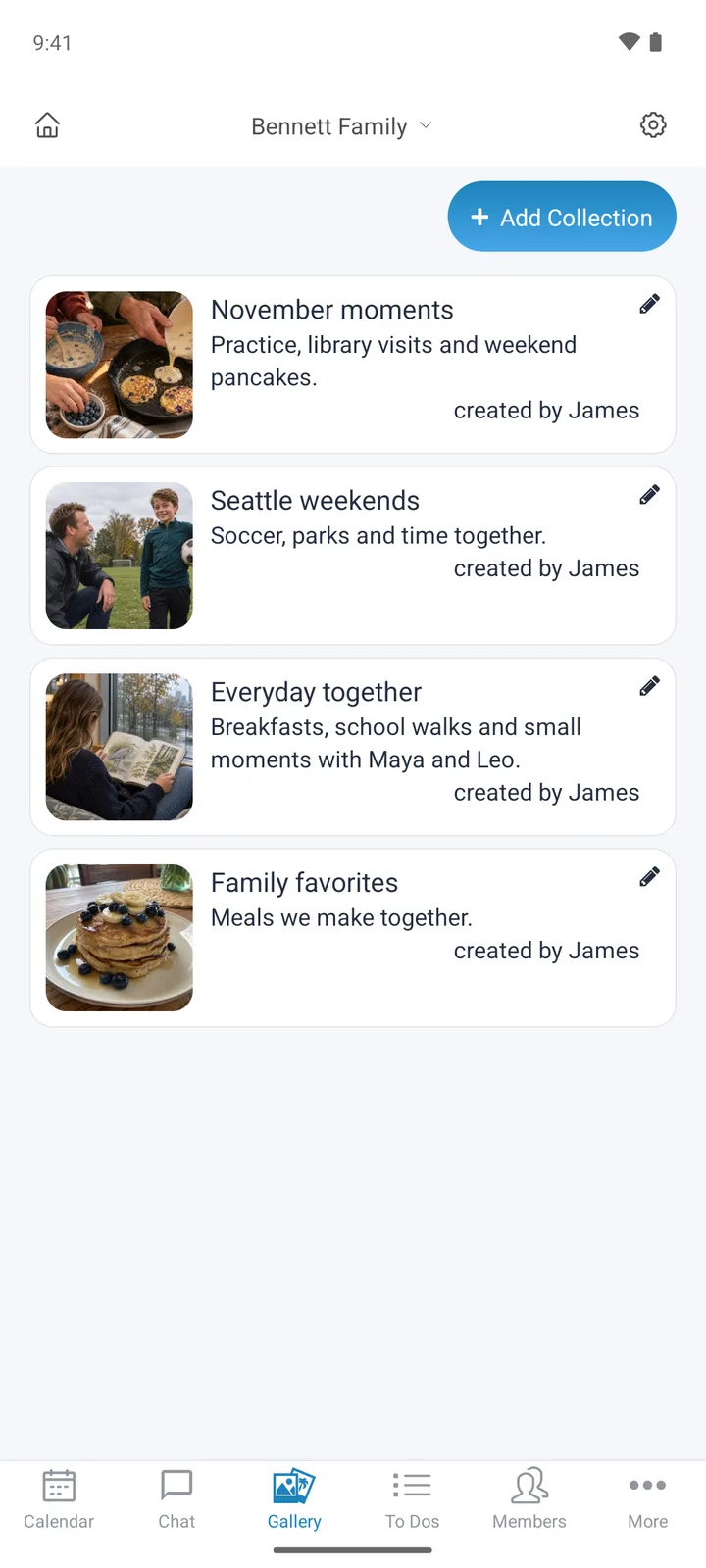
- Open Gallery in your pod.

- Tap Add Collection.
- Tap Add a cover photo.
- Tap Choose From Library.
- Select the photo you want on the collection cover.
- Enter a recognizable name in Title.
- Add a short Description to explain the occasion.
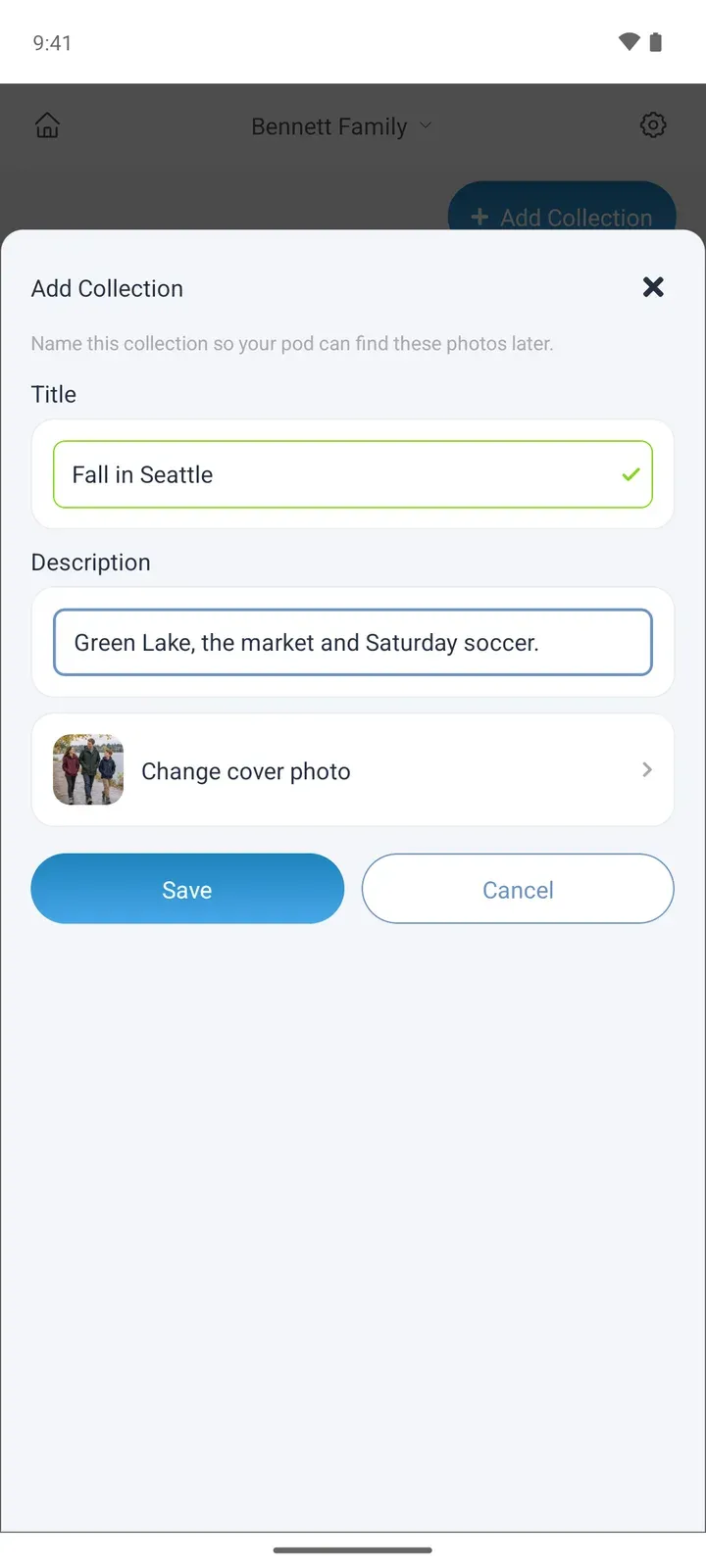
- Tap Save.
- Open your new collection.
- Tap Add Photos.
- Tap Choose Photos.
- Select the photos to include in the album.
- Tap Add in the phone's photo picker.

- Open a photo to view it at full size.
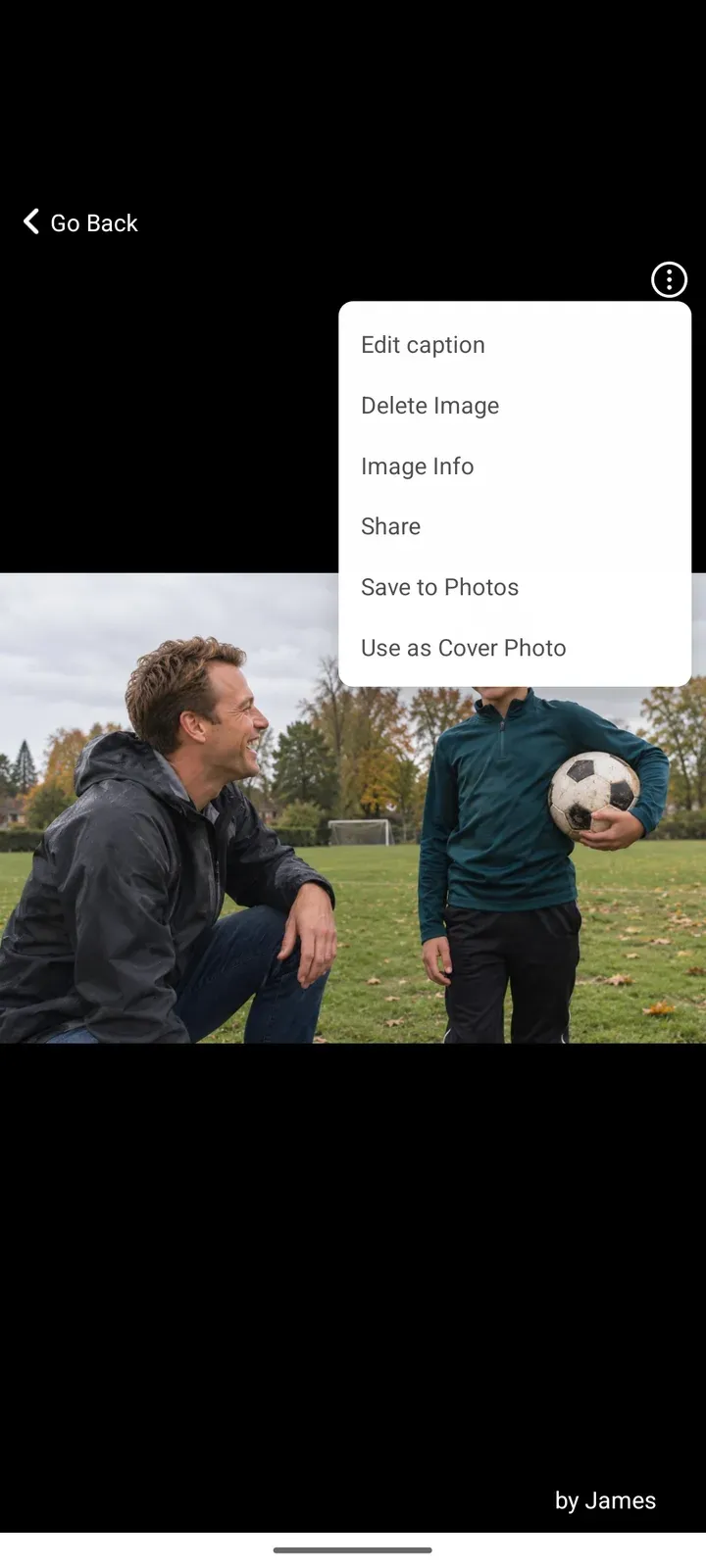
- Tap the photo's options menu (the three dots) to see the caption, cover and saving options.

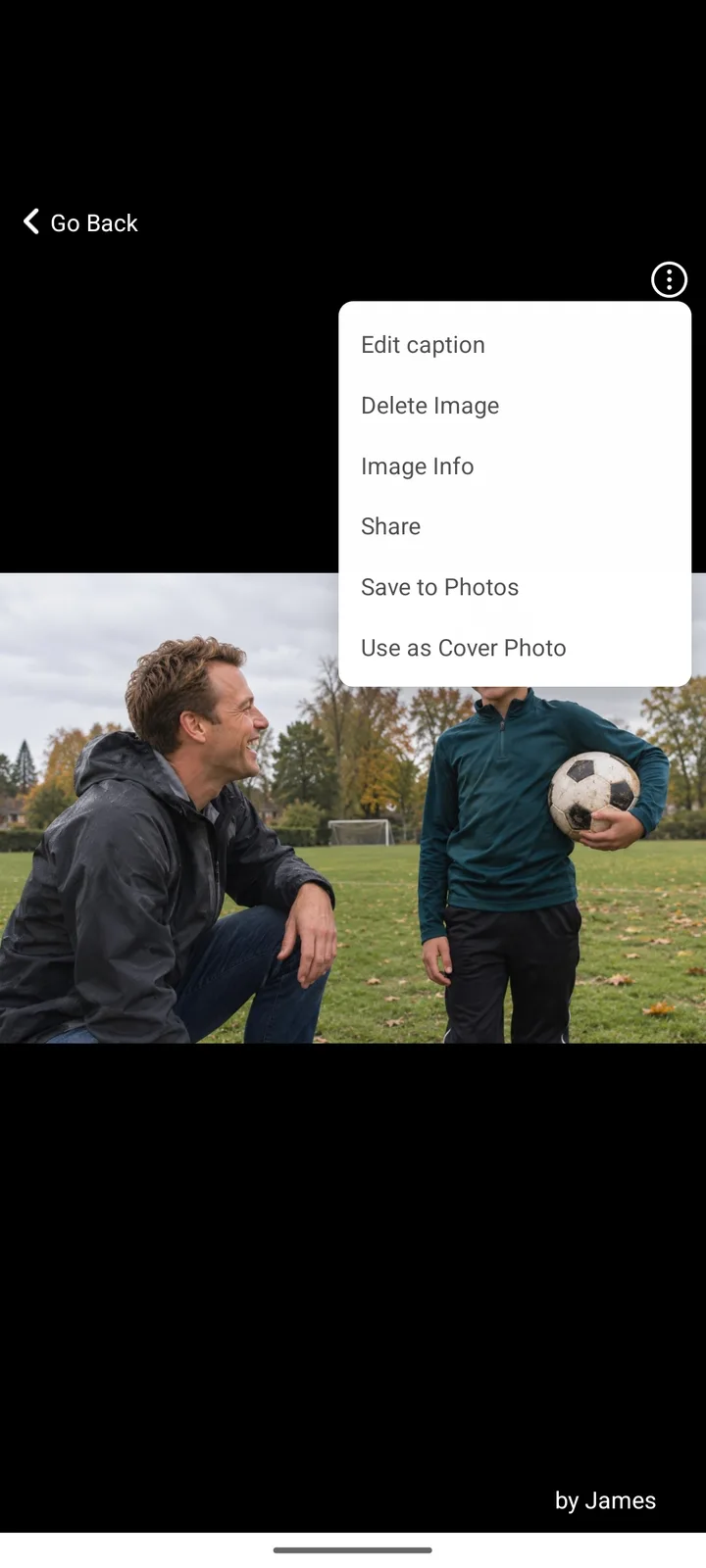
Steps checked on Android; iPhone screens may look slightly different. Checked in Podz 2.20.56 on Nov 16, 2026.
Good to know
A clear title and familiar cover make an album easy to find after a busy weekend or a shared trip. Choosing a cover does not add that image to the album itself: use Add Photos for the collection’s contents. Check Title once more after choosing the cover and before Save.
To see the collection’s sharing and saving options, tap the share icon beside Sort. Save to Photos opens a confirmation with the number of images. Share to group chat is a separate action that posts the collection to your pod’s chat.
A photo’s menu includes Edit caption for the story behind the picture and Use as Cover Photo for changing the collection cover. Android’s photo picker and permission wording can vary by phone.
Still stuck? Get help from Podz, or search all the guides.