
How do I chat and share photos with my pod?
Open the Chat tab and tap the add button beside the message box (the plus sign). It offers a photo, a video or a poll, and you can pick several photos for one message.
Steps
- Tap Chat at the bottom of your pod.
- Tap the add button (the plus sign) beside the message box, Type a message....
- Tap Choose a Photo.
- Select the photos you want to send together.
- Tap Add (2) (the number is how many photos you picked).
- Add a short caption in Add a Caption if you like, then tap send (the arrow beside the caption).

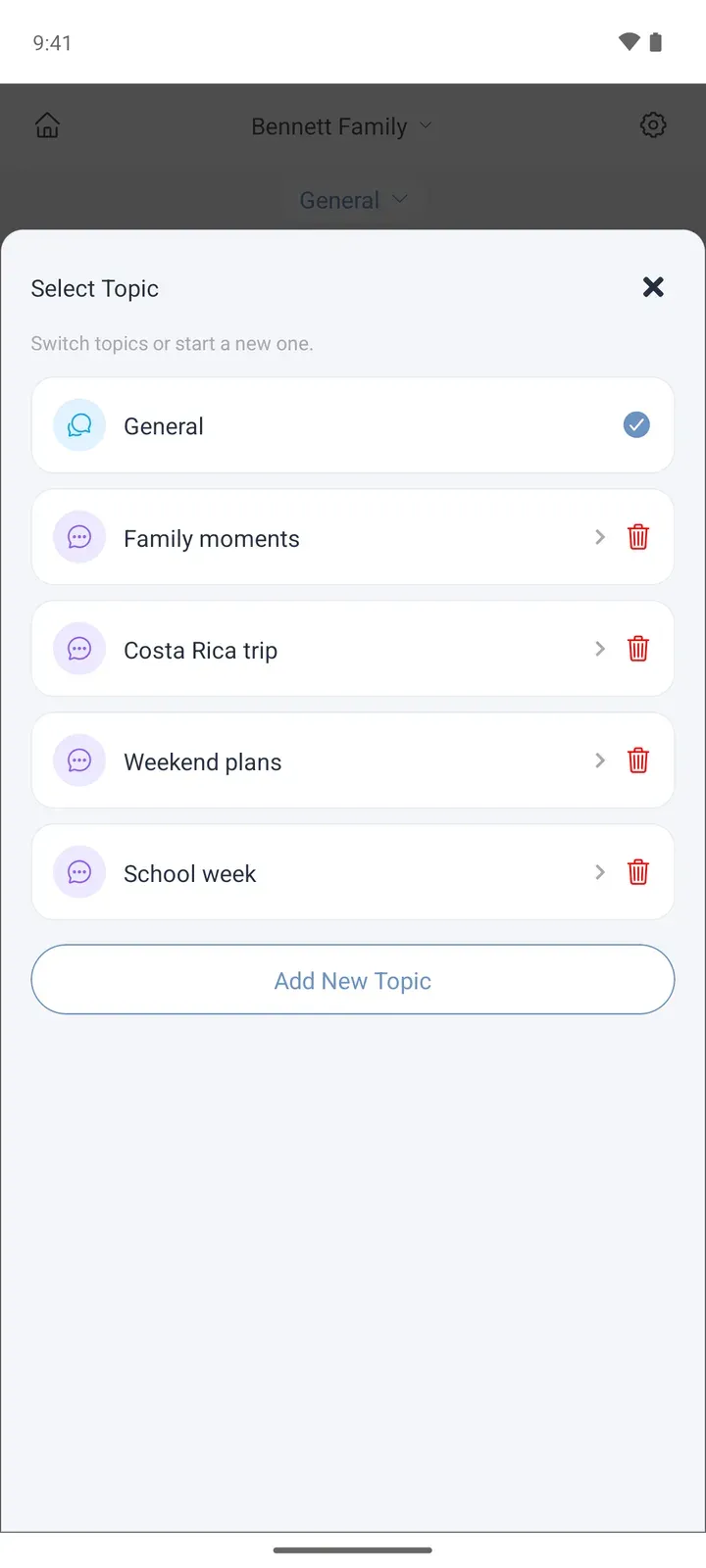
- To post in another topic, tap the topic name above the messages (General at first) and pick one in Select Topic.

Steps checked on Android; iPhone screens may look slightly different. Checked in Podz 2.20.56 on Nov 16, 2026.
Good to know
The add button also offers Take a Picture, Video, Create Poll and Cancel. To drop a photo before you send, tap the x on it. The caption goes with the photos as one message.
Select Topic says Switch topics or start a new one. Add New Topic opens a name field and Save creates the conversation.
To react to a message instead of replying, press and hold it (see the reactions guide). Photos you want to keep together belong in the Gallery tab.
Still stuck? Get help from Podz, or search all the guides.