
How do I create a pod for my family?
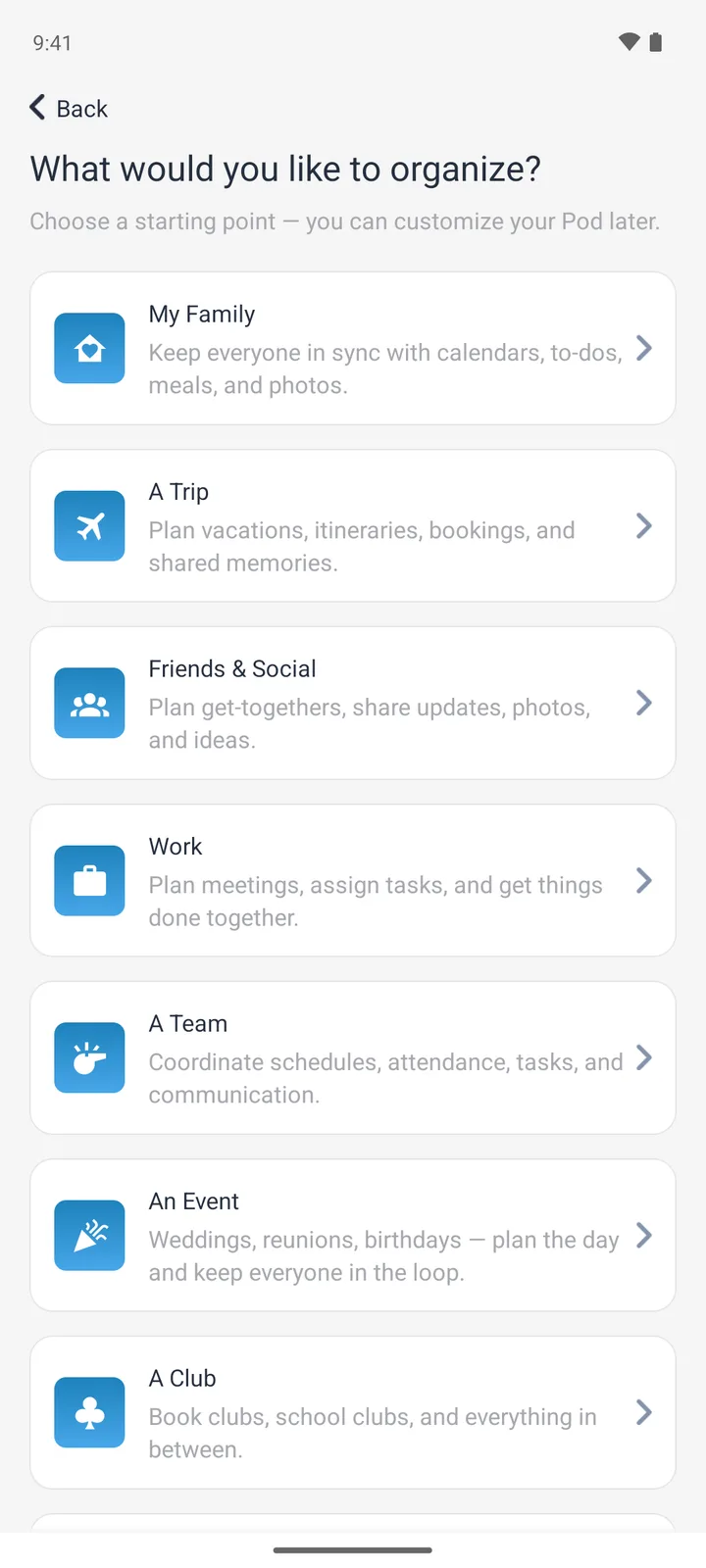
A pod is the private group you create for your family. On Your Pods, tap + Create a New Pod, pick My Family, name the pod and check your display name. Your family then has one place for its calendar, lists and plans.
Steps
- Start on Your Pods, the screen Podz opens on, and scroll to the bottom. If you are inside a pod, tap the pod name at the top of the screen to open Select Pod instead.
- Tap + Create a New Pod on Your Pods, or Create New Pod in Select Pod.
- Under What would you like to organize?, choose My Family.
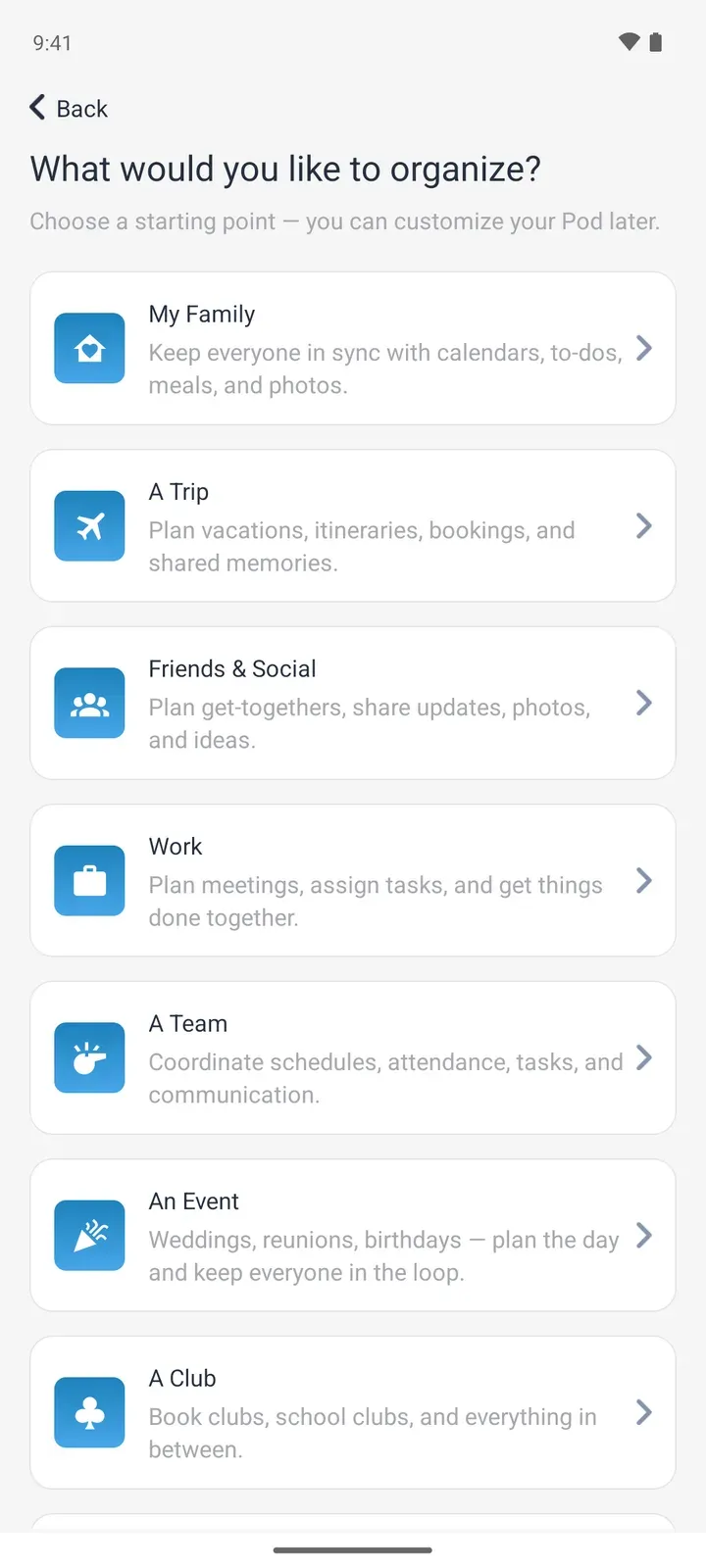
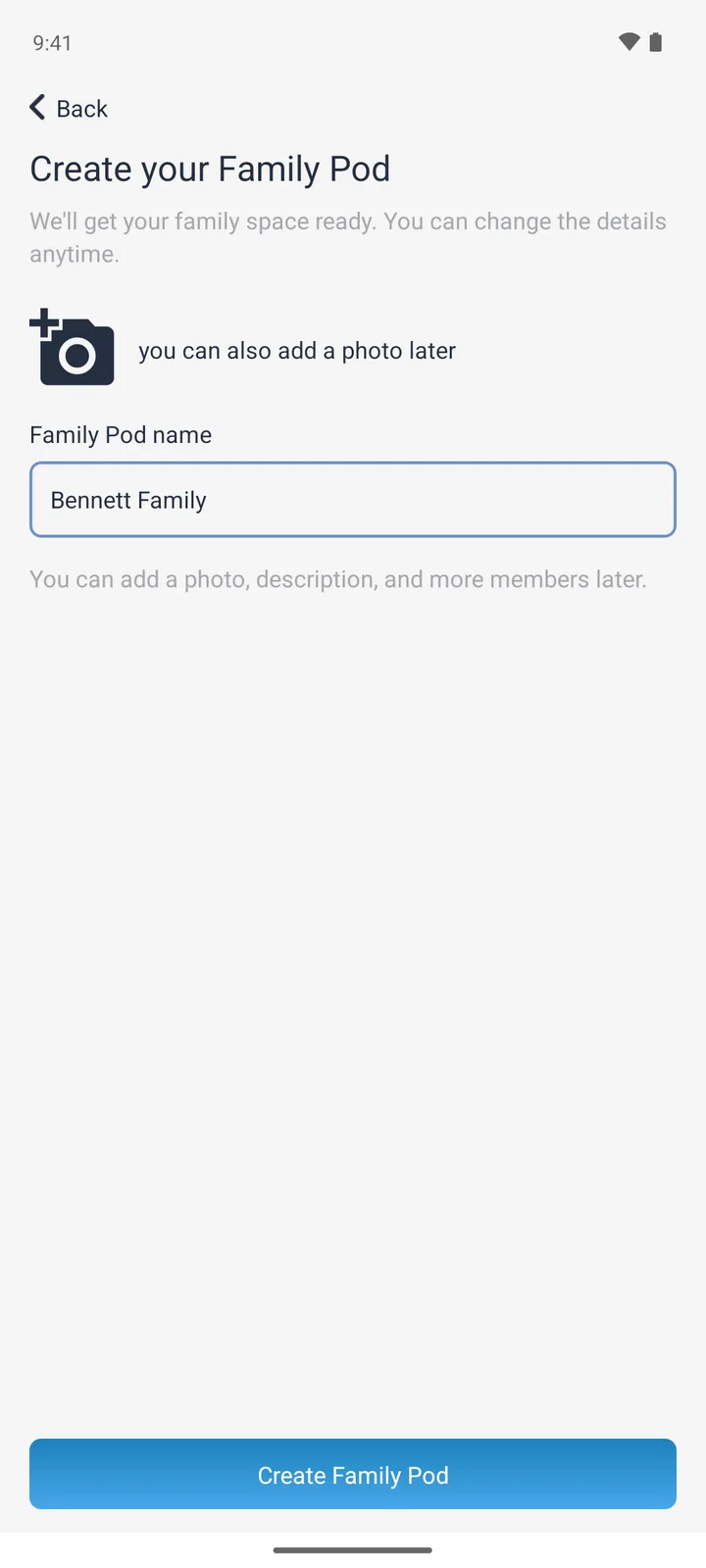
- Enter a name for your family in Family Pod name.
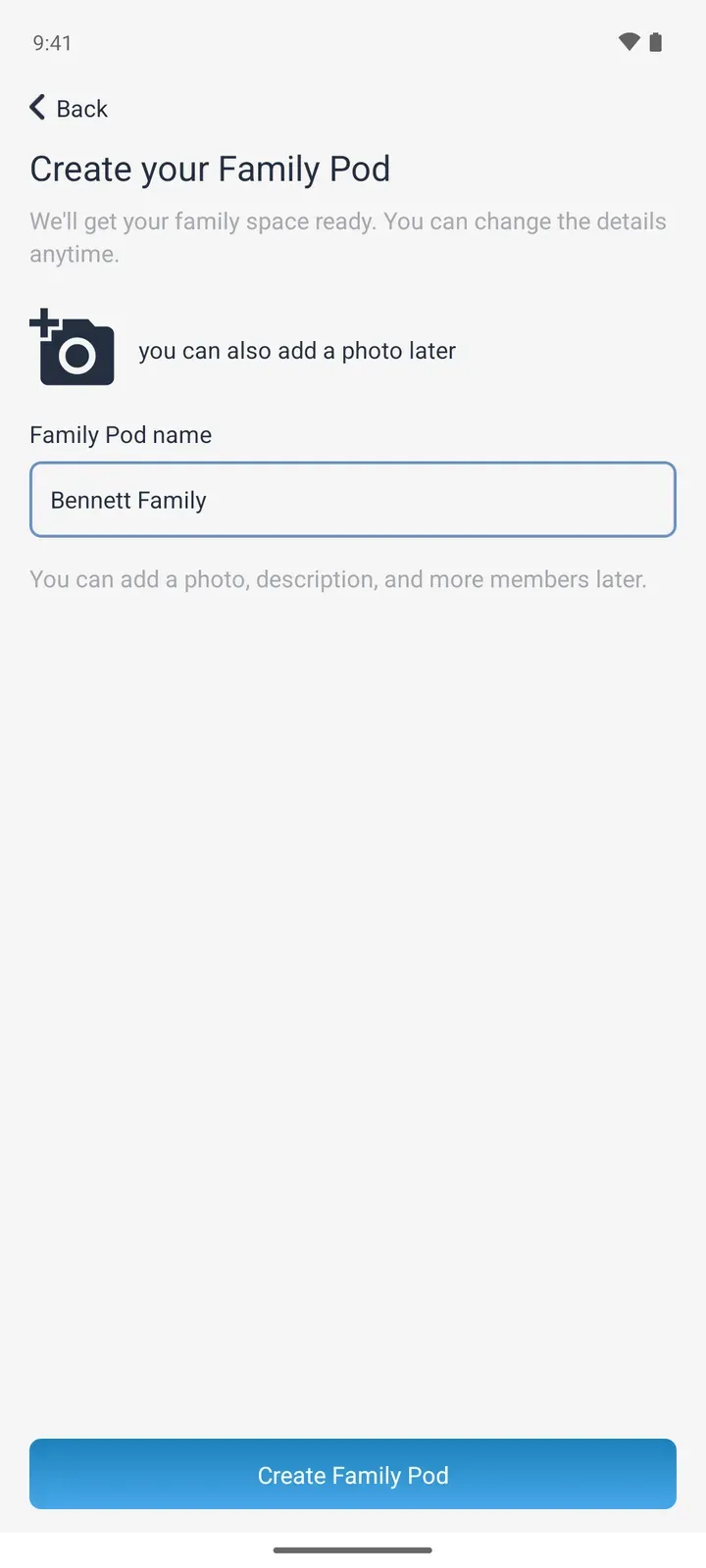
- Tap Create Family Pod.
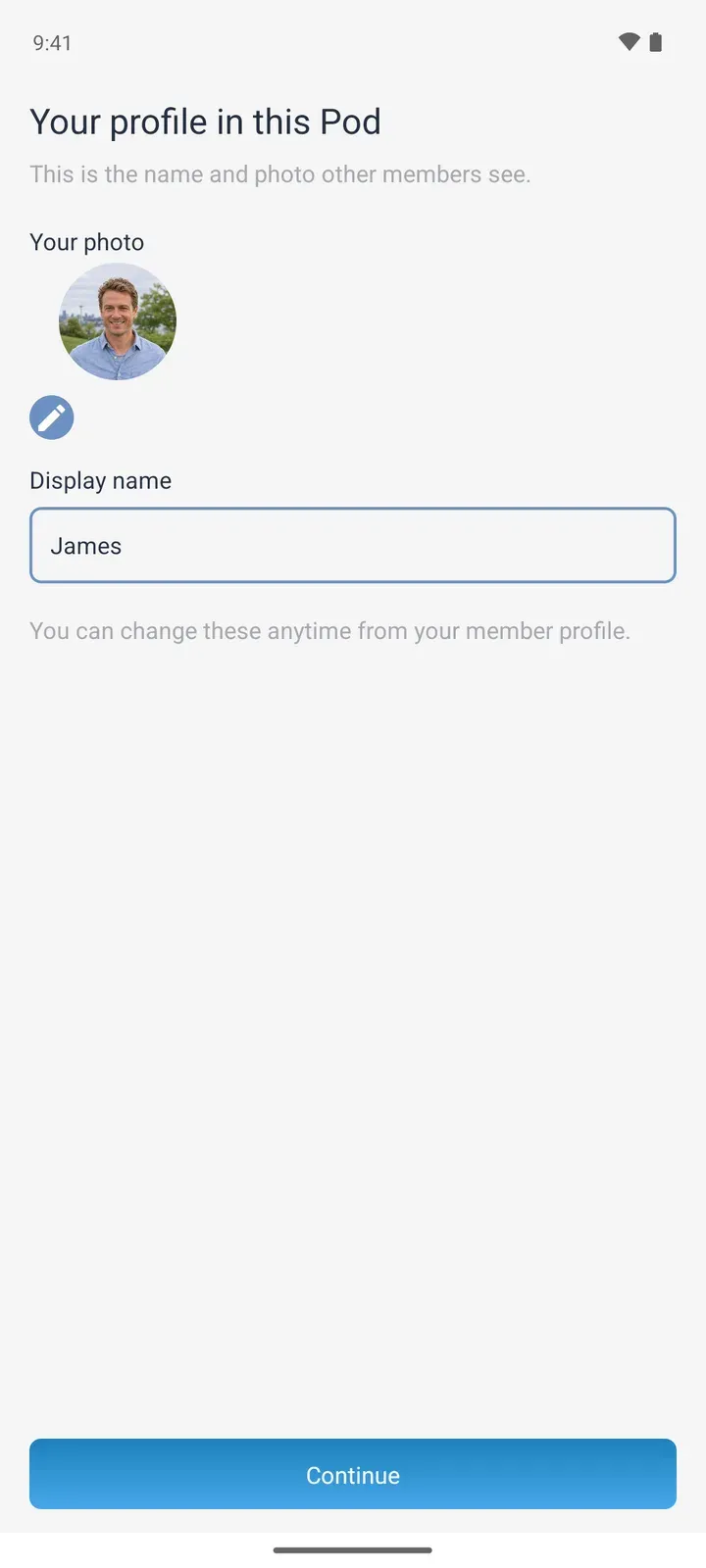
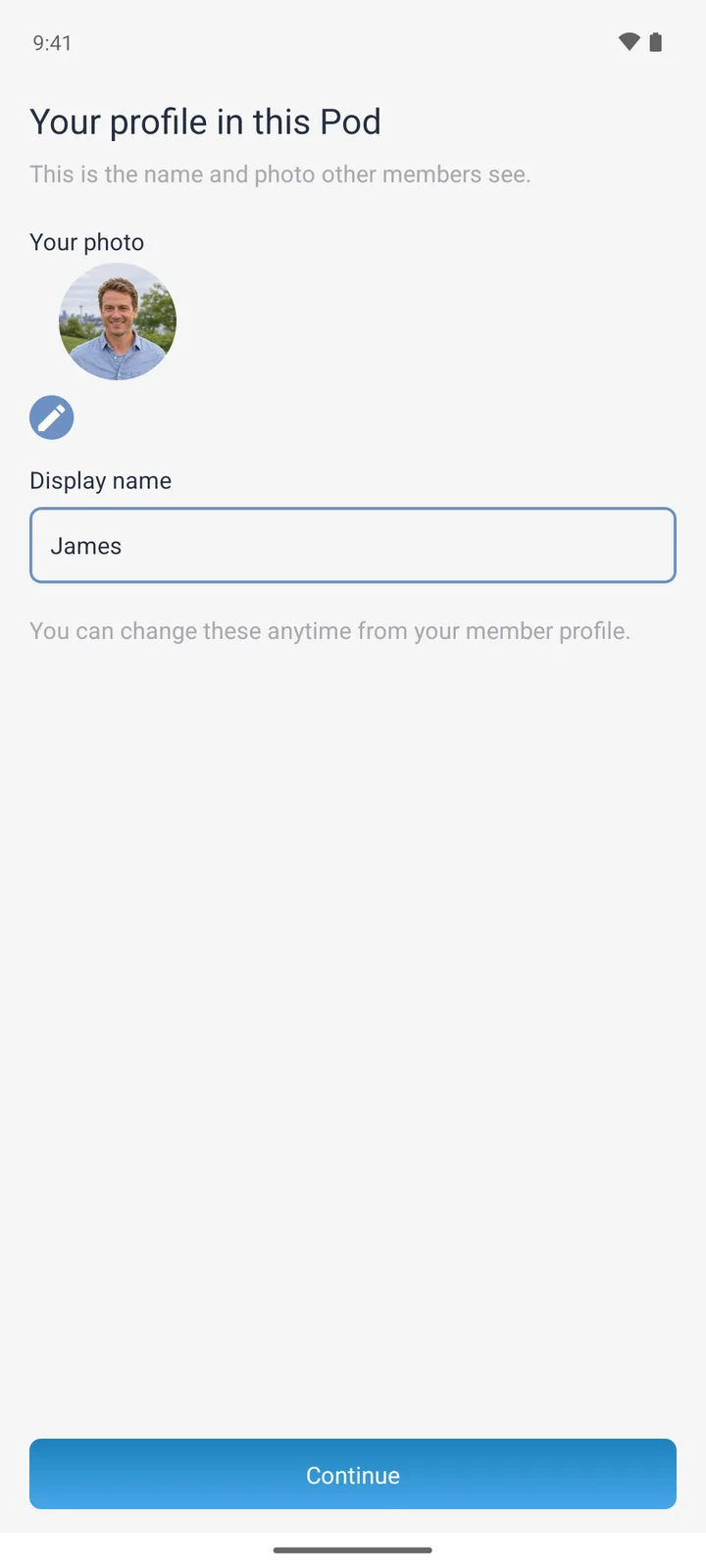
- On Your profile in this Pod, check your Display name and the photo your family will see.
- Tap Continue. Let's get your family organized offers four ways to start.
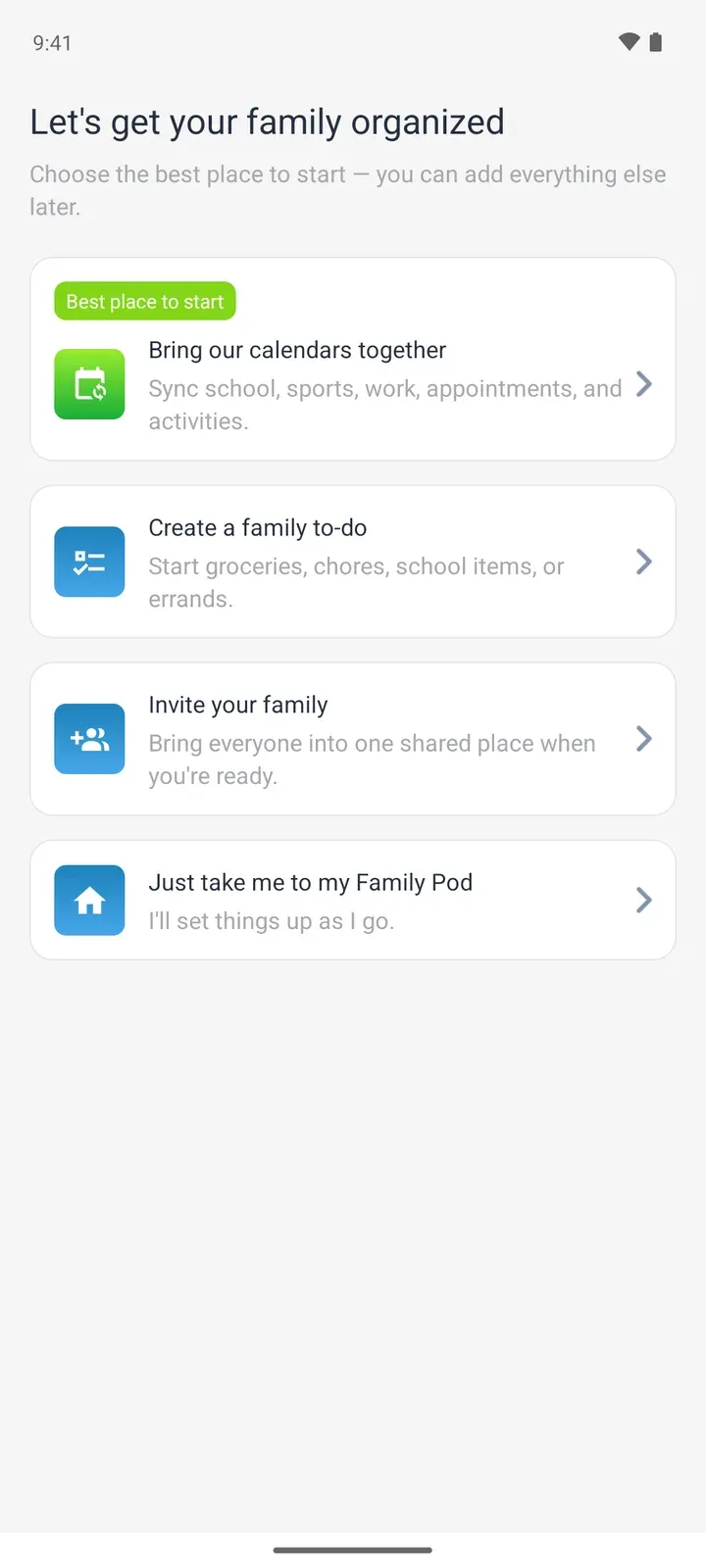
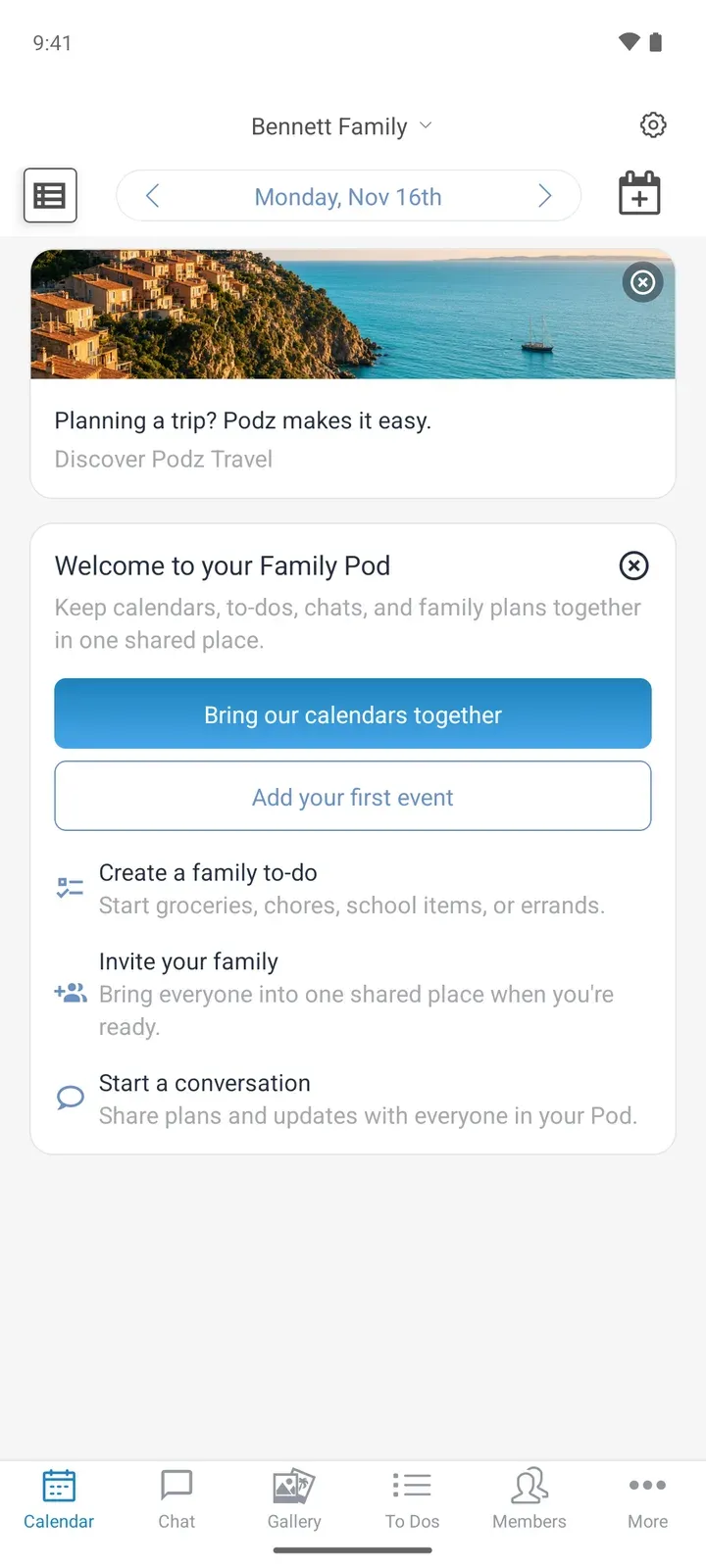
- Choose Just take me to my Family Pod. Your pod opens with Welcome to your Family Pod and its first steps.
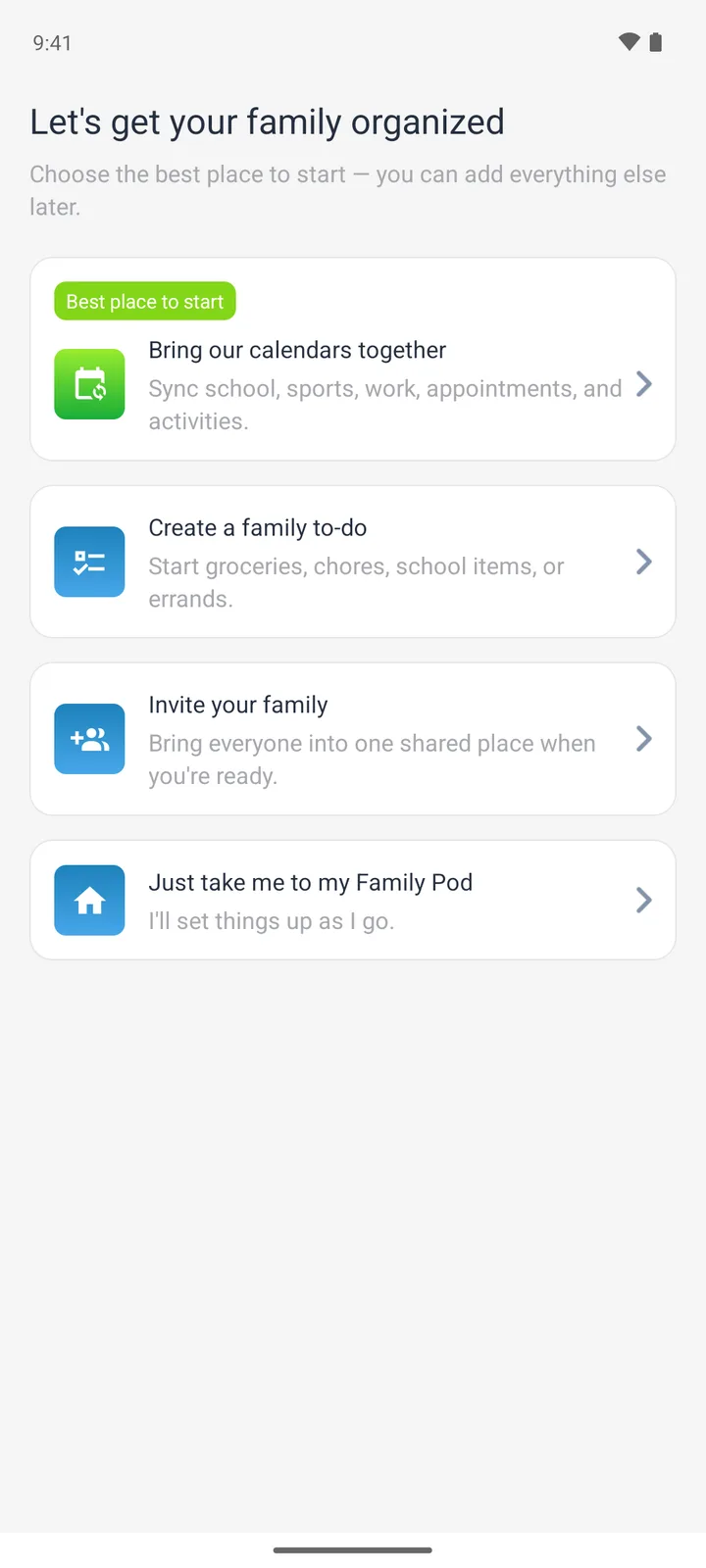
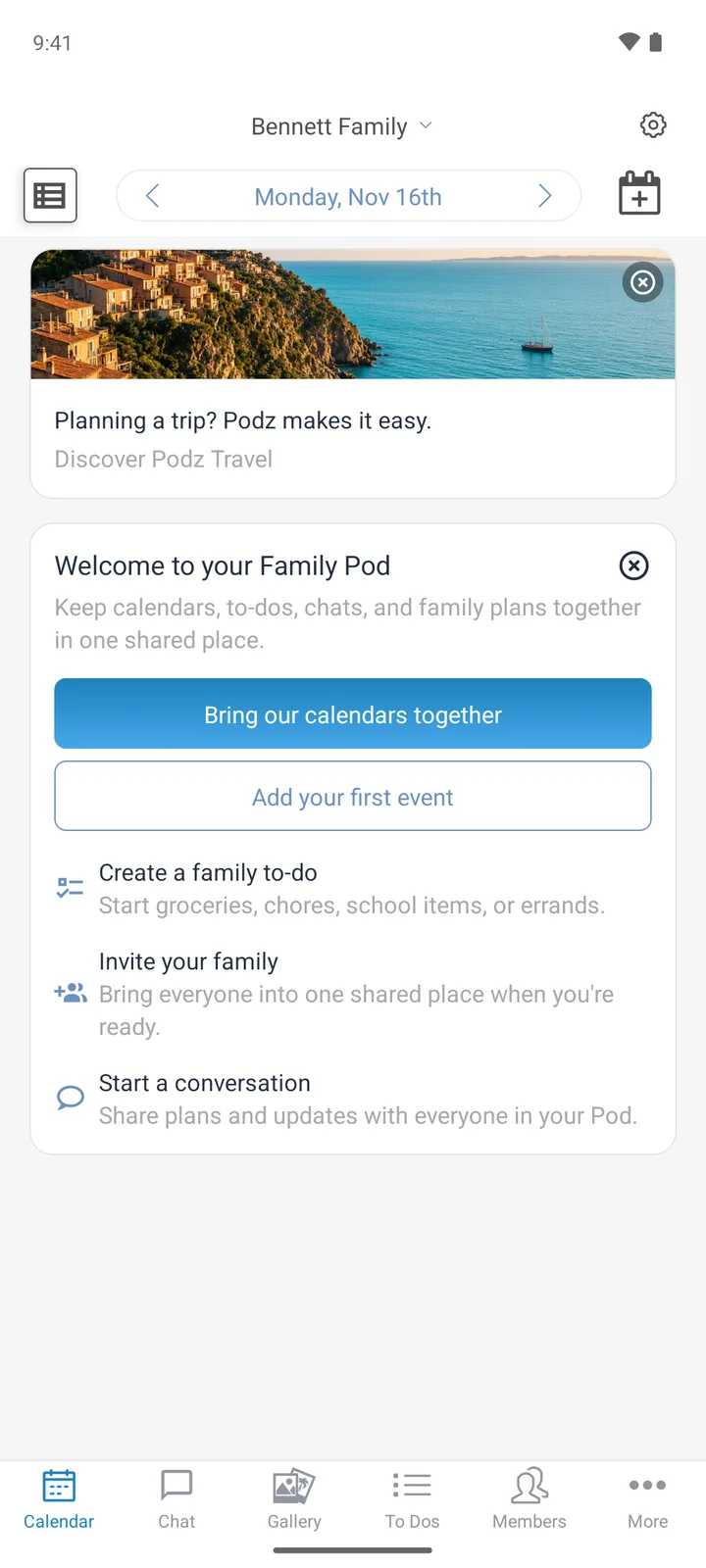
Steps checked on Android; iPhone screens may look slightly different. Checked in Podz 2.20.56 on Nov 16, 2026.
Good to know
In Select Pod, use Show More Pods if needed to reveal Create New Pod, then scroll down if the option is still below the visible area. The name field may arrive prefilled; replace it with the name you want before creating the pod.
The pod’s welcome card keeps the other first steps, Bring our calendars together, Create a family to-do and Invite your family, and adds Add your first event and Start a conversation. A new pod starts with four lists, Groceries, Chores, Reminders and To Dos, and two suggested to-dos.
To pick your photo, tap the edit button on it (the pencil) on Your profile in this Pod, then Browse Stock Photos, Choose From Library or Take Photo. To change it later, open the app menu (the gear icon at the top right of a pod screen), tap Pod Profile and tap the edit button on your photo. A clear photo helps your family see who is assigned to an event or task.
Still stuck? Get help from Podz, or search all the guides.