
How do I give someone in my family a to-do with a due date?
Create the task in To Dos, choose a person under Assign To and set a Due Date. A clear owner, deadline and short note help your family see the next step without asking around.
Steps
- In your pod, tap To Dos.
- Open the To Do's tab.
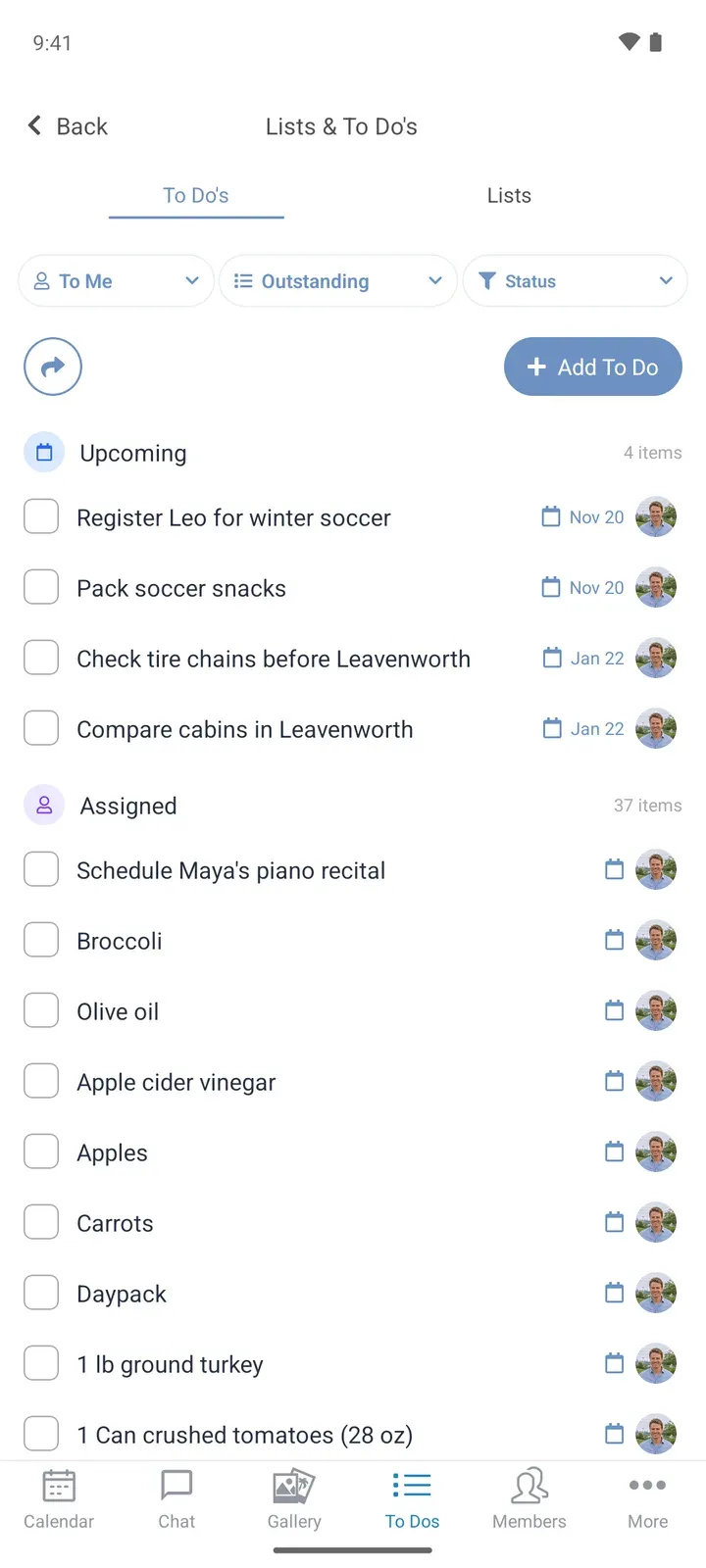
- Tap Add To Do.
- Name the job in What needs to get done?, such as Pack warm gloves.
- Tap Select List.
- Choose the list where the task belongs.
- Tap Assign To.
- Choose the person who will handle the task.
- Tap Done.
- Turn on Due Date.
- Choose the day in the date picker.
- Tap OK to confirm the date.
- Open Notes to add a useful detail.
- Write what the person needs to know, such as bringing a dry spare pair.
- Tap the checkmark to return to the task form.
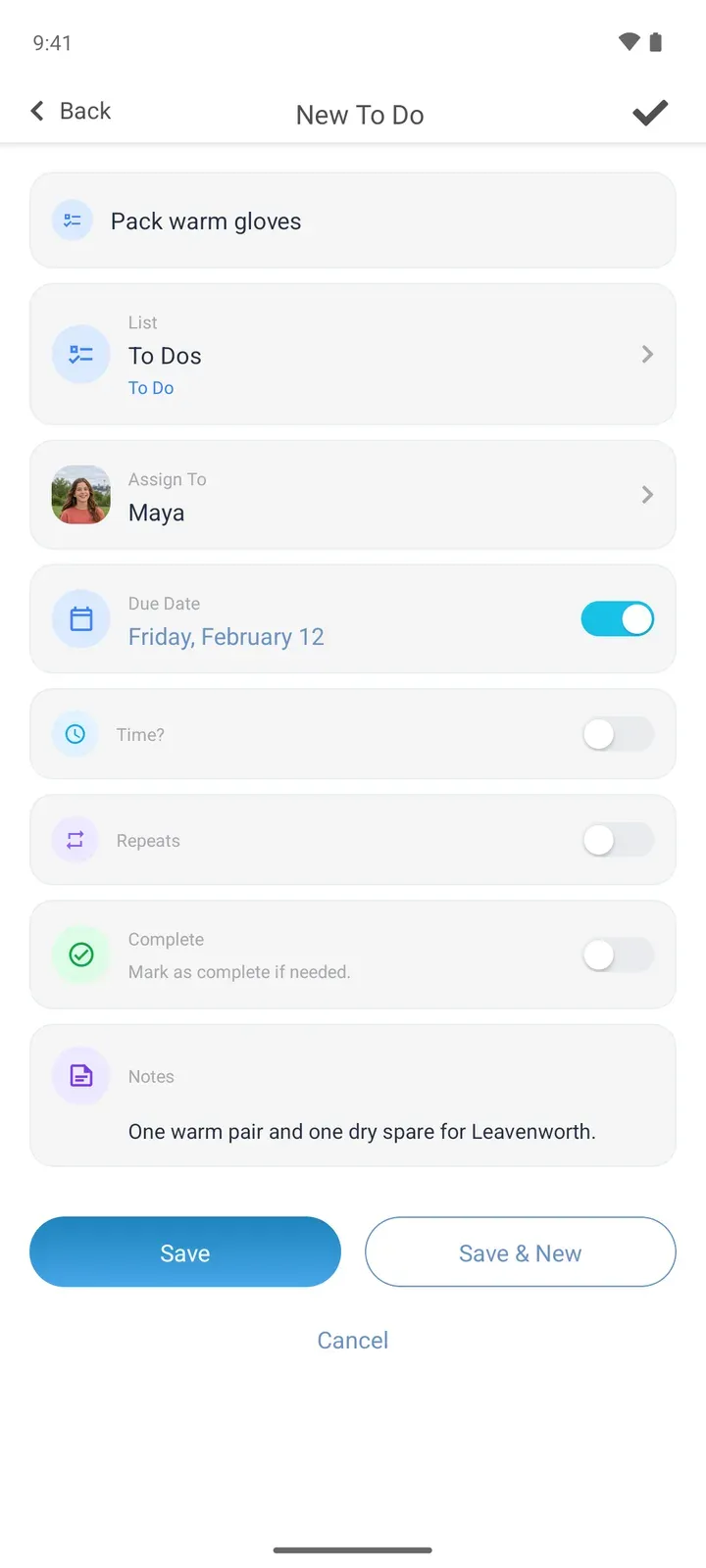
- Tap Save.
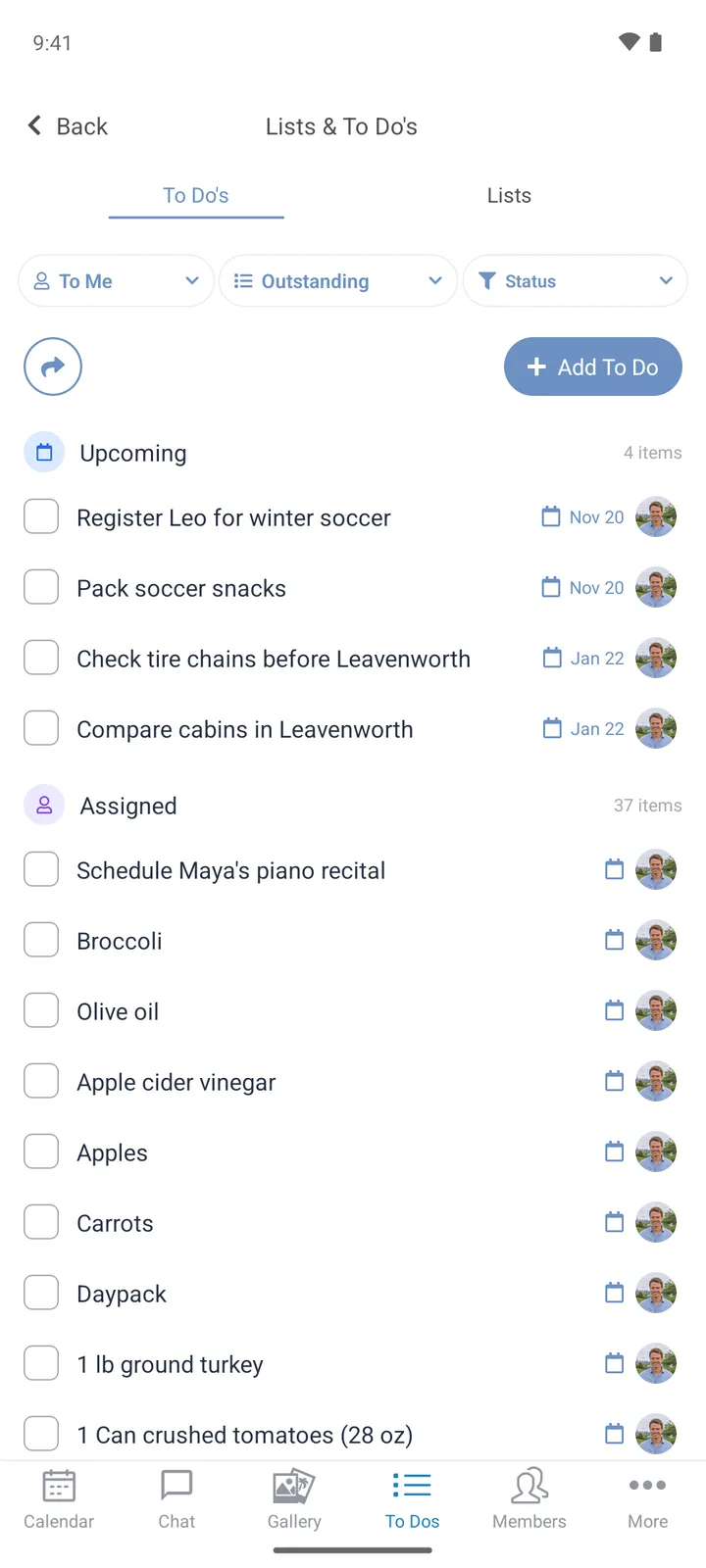
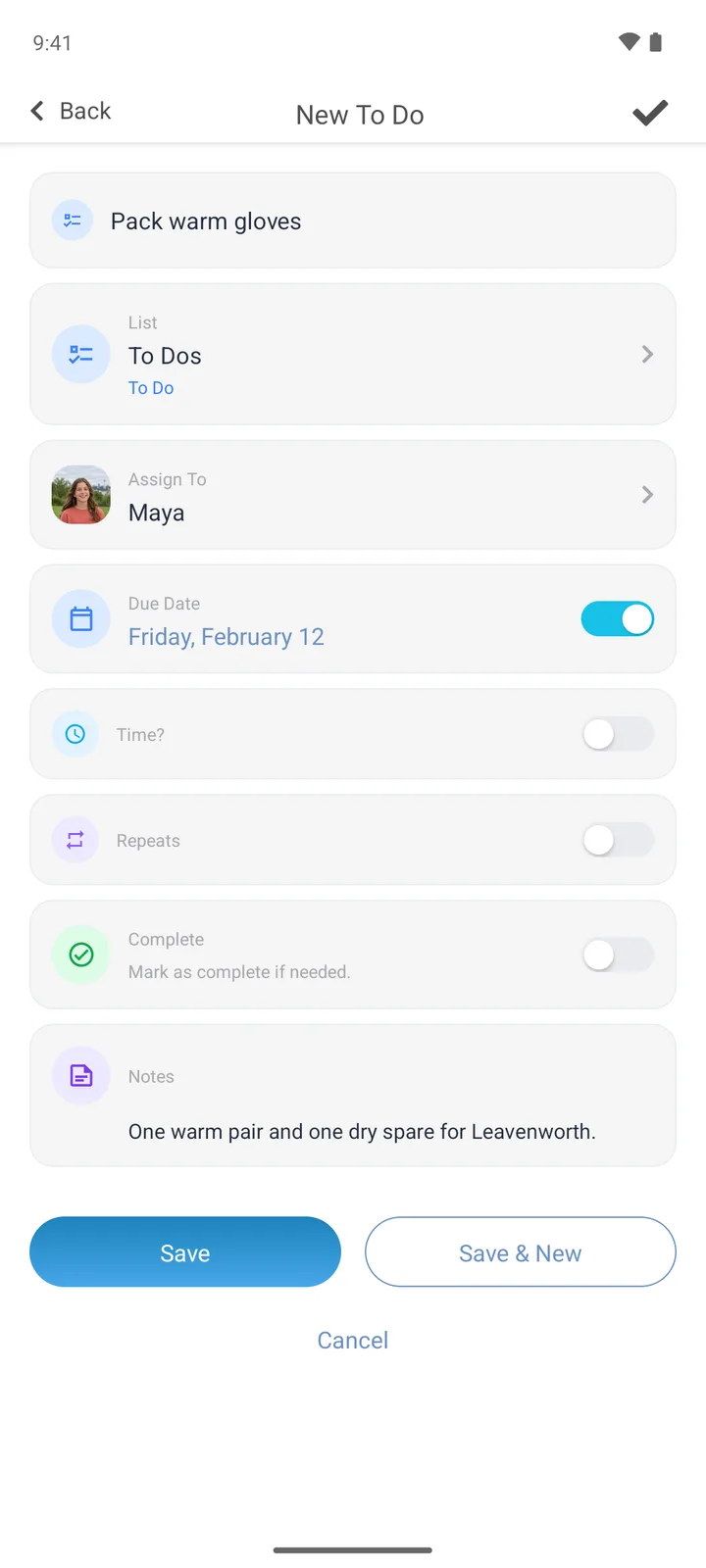
Steps checked on Android; iPhone screens may look slightly different. Checked in Podz 2.20.56 on Nov 16, 2026.
Good to know
The list opens on To Me, which hides tasks you give to someone else; switch to All to see them. Upcoming and Due Date show the family’s next jobs together. Tap an existing task to change its details.
Time? and Repeats appear after you enable the due date. Use them when the job needs a particular time or repeats regularly. Save & New saves the task and opens another form; Cancel discards the draft. Family members without a phone can still be assigned tasks after you add them as offline members.
Still stuck? Get help from Podz, or search all the guides.