
How do I plan meals and make a grocery list?
Plan the week in Meal Schedule, then use New Grocery List to collect the ingredients from your saved recipes. Keep dinner decisions and shopping in one place, with quantities ready to check off at the store.
Steps
- In Calendar, open the view menu.
- Tap Meal Schedule.
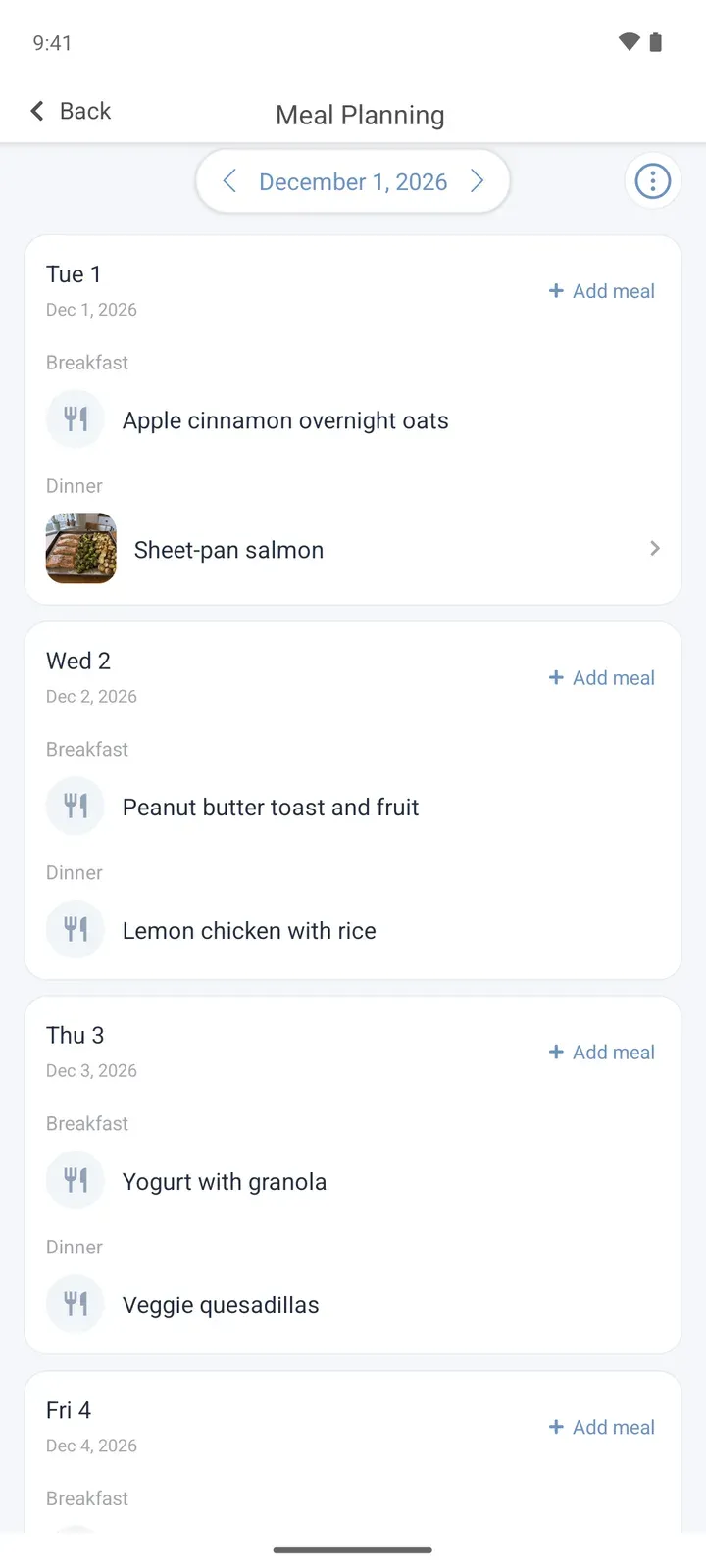
- Tap Add meal (Add first meal on an empty plan) beside the day you want to plan.
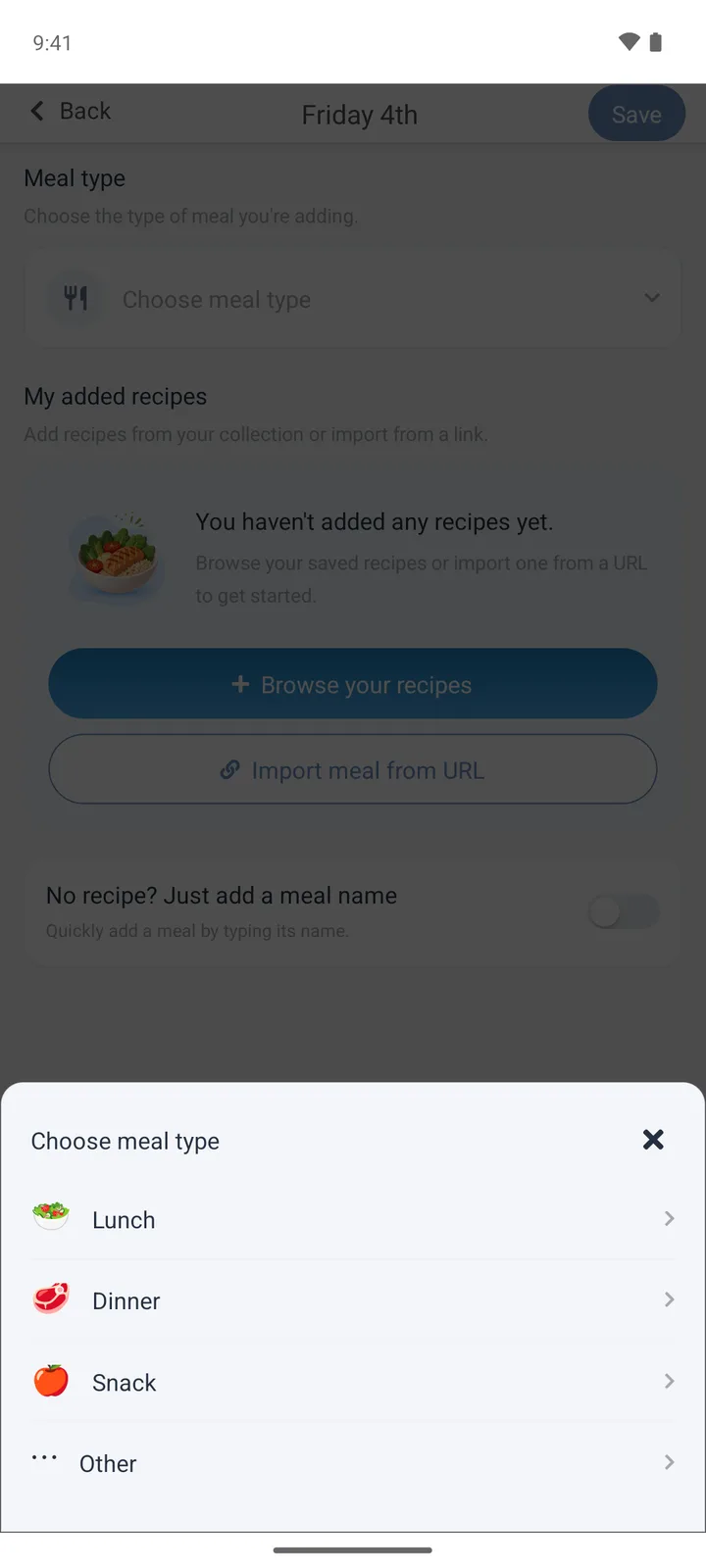
- Tap Choose meal type.
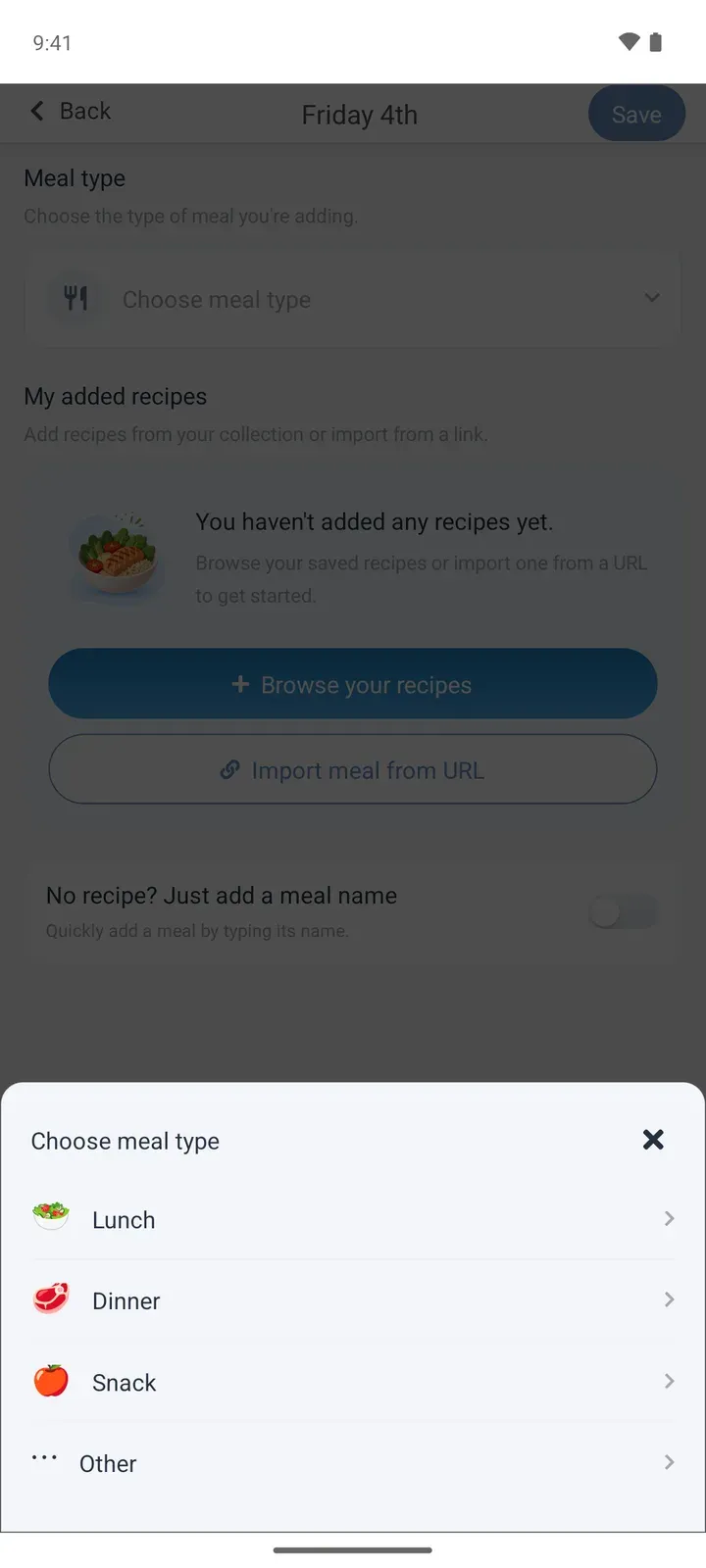
- Choose the meal type, such as Dinner.
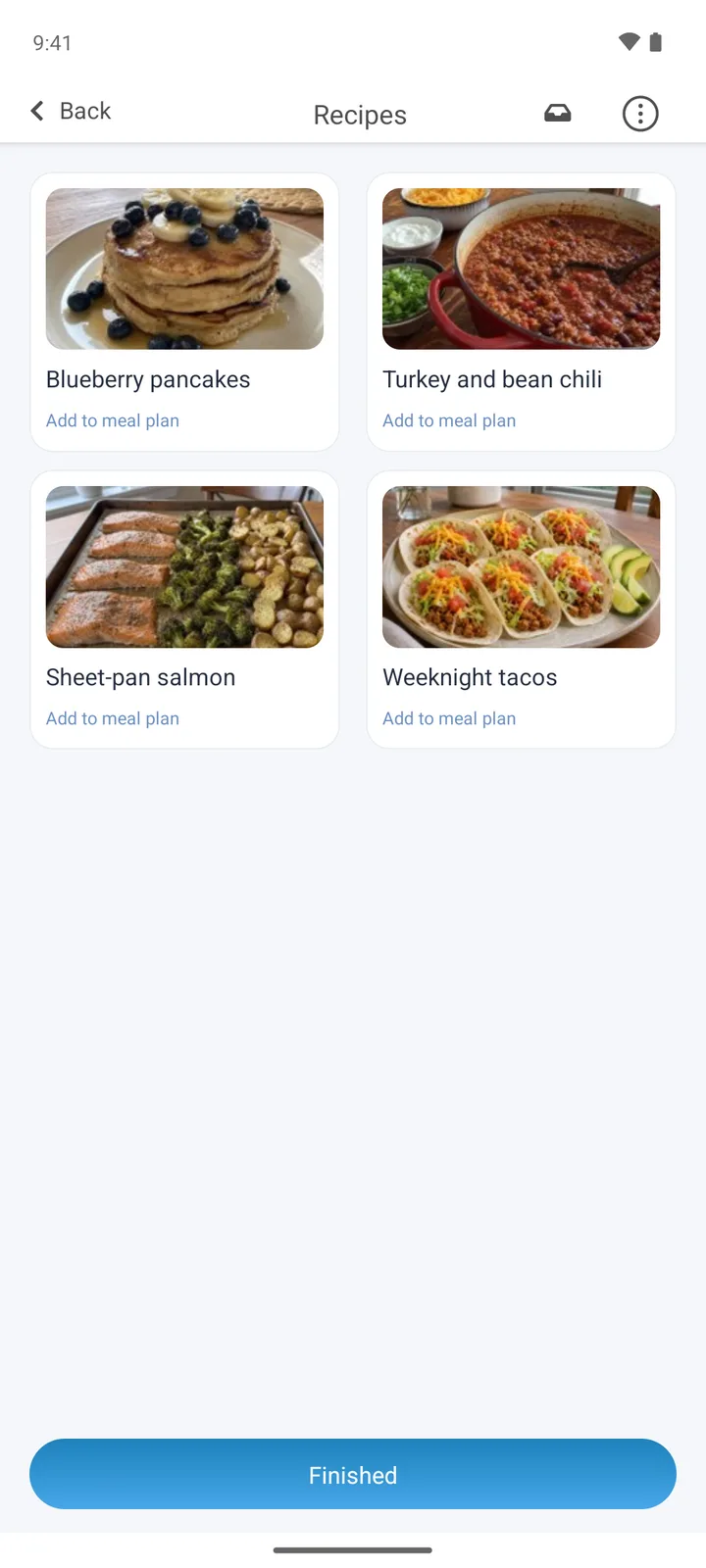
- Tap Browse your recipes.
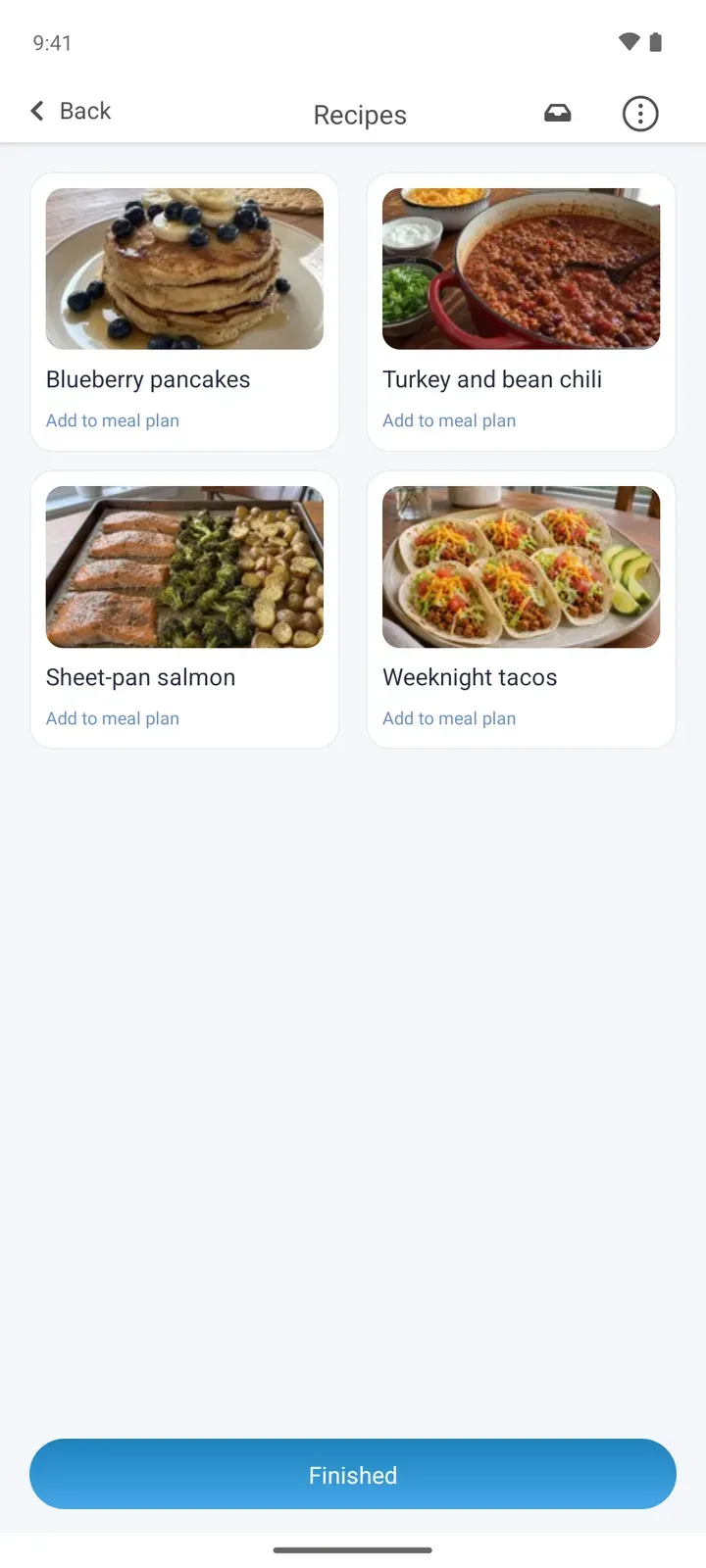
- Tap Add to meal plan under the recipe you want.
- Tap Finished.
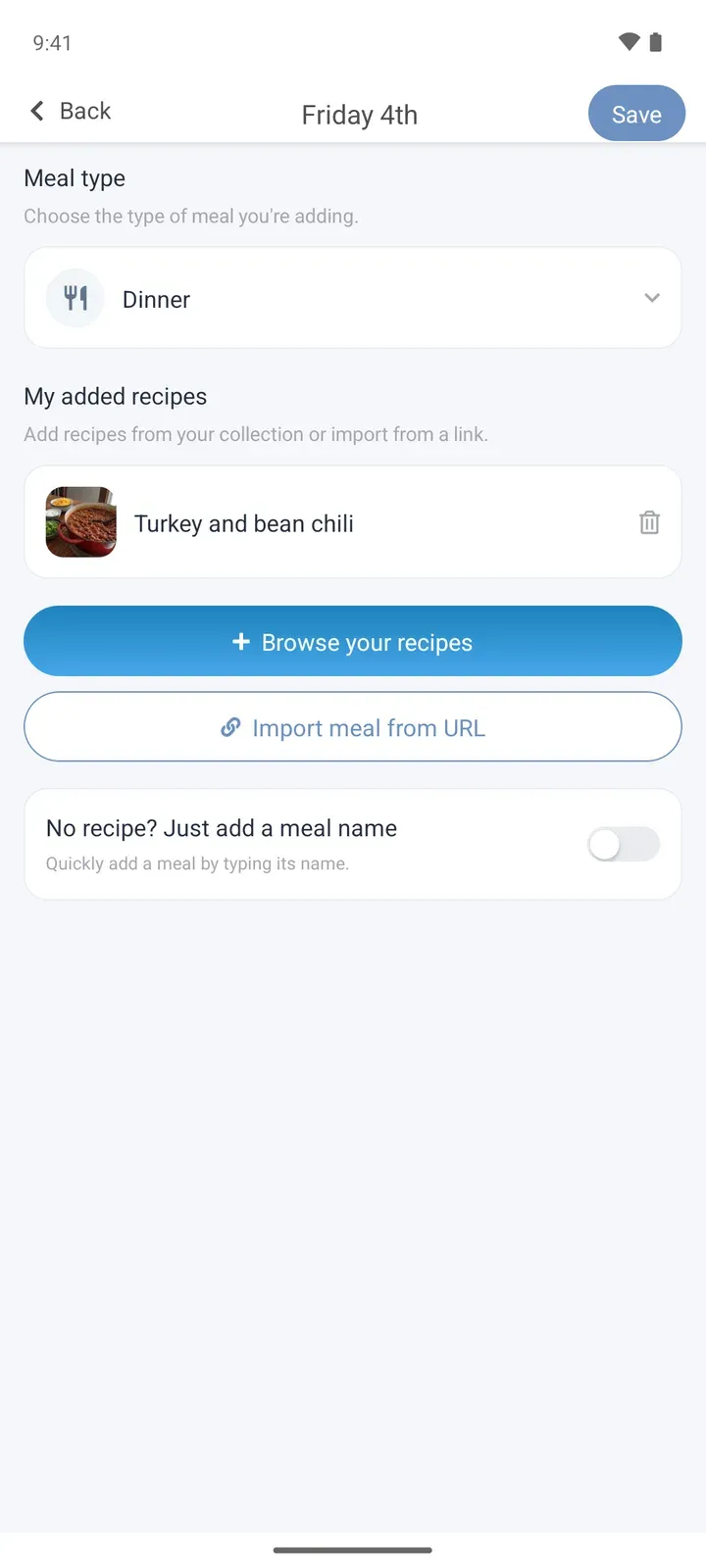
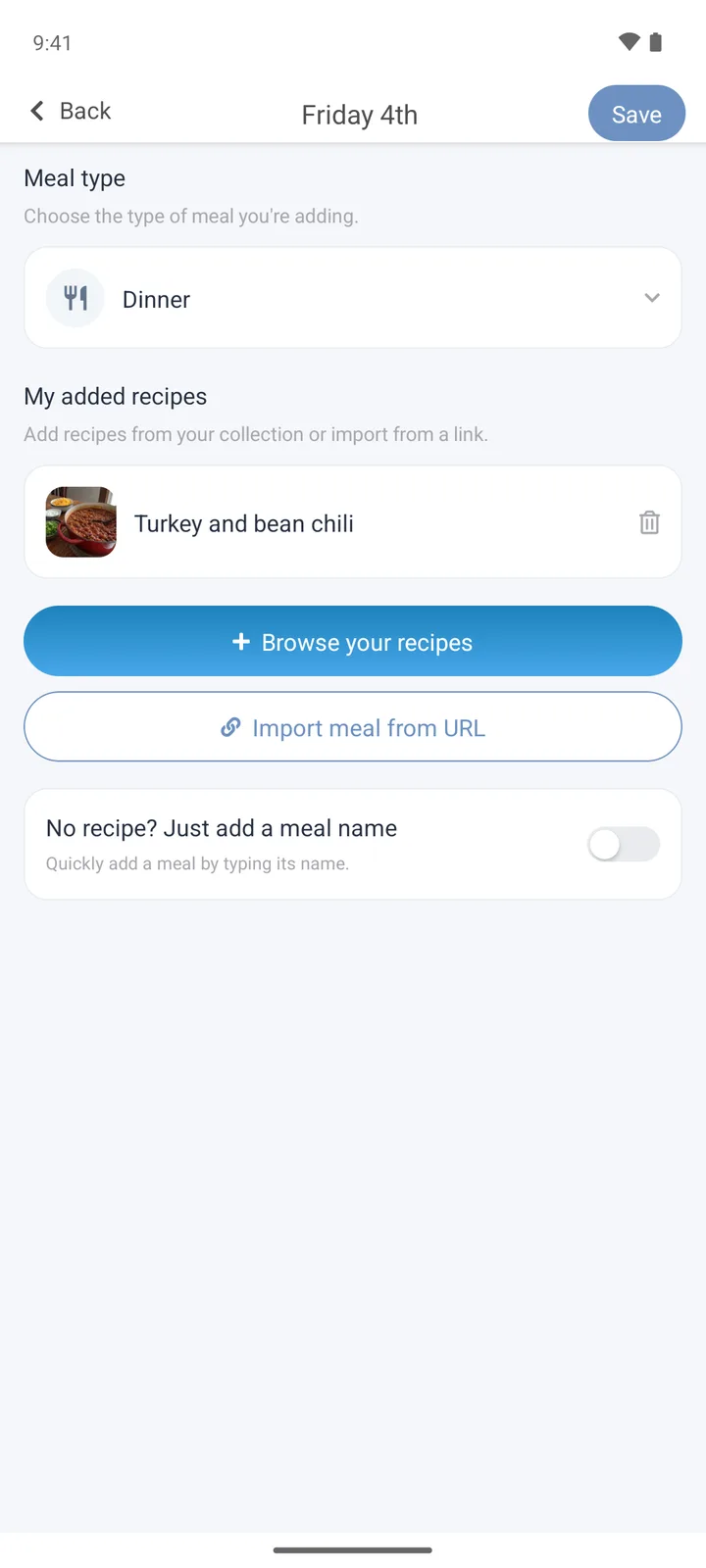
- Tap Save to put the meal on your schedule.
- Open the menu at the top right of Meal Planning.
- Tap New Grocery List.
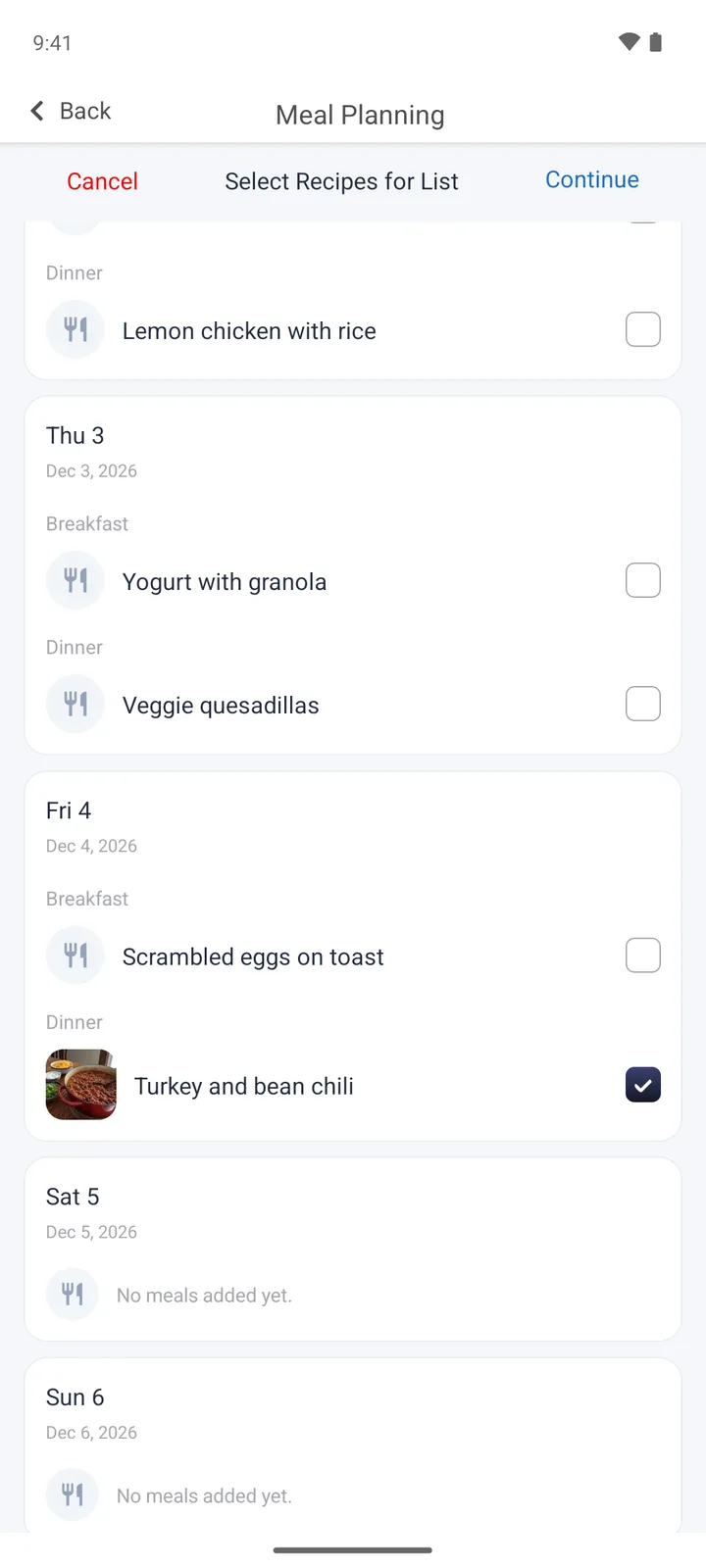
- Select the recipes you want to shop for in Select Recipes for List.
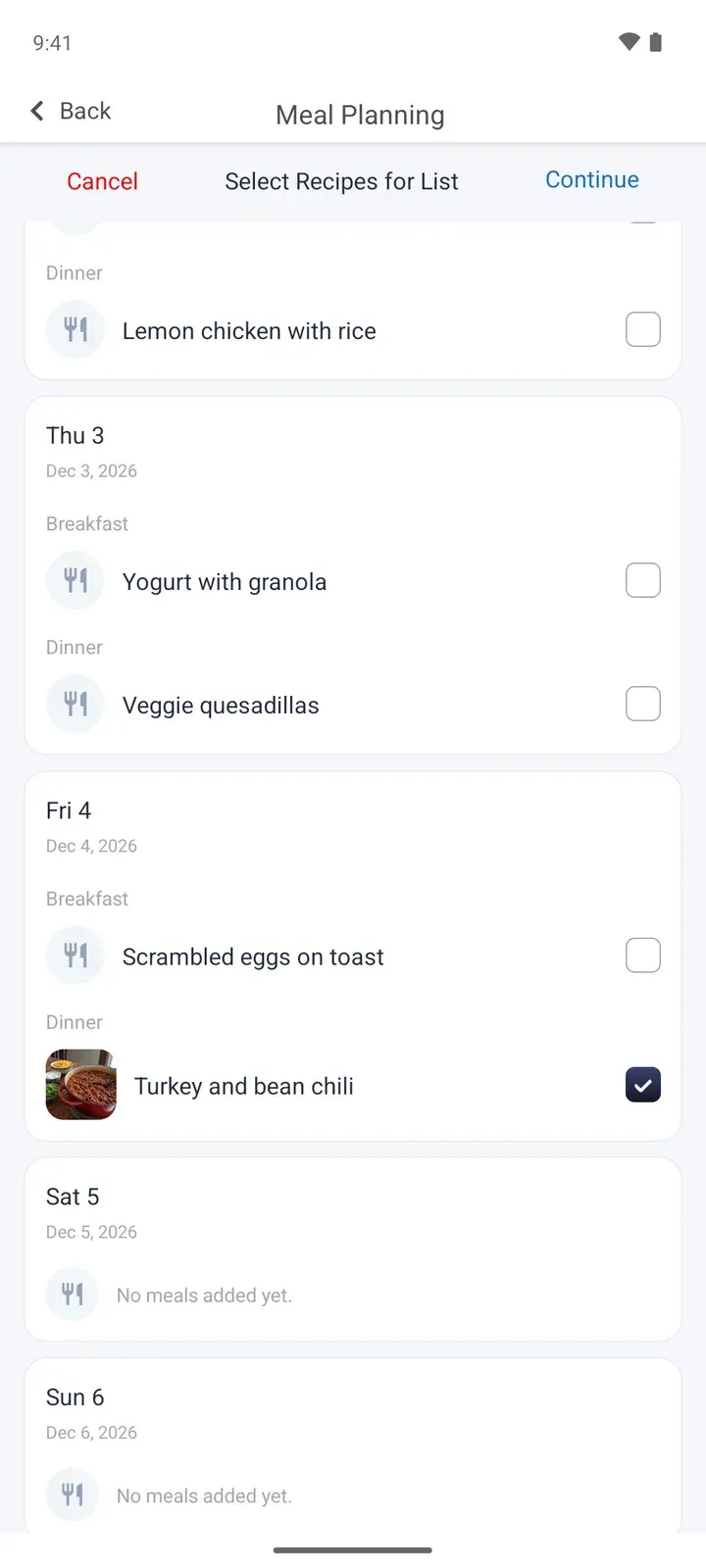
- Tap Continue to review the ingredients.
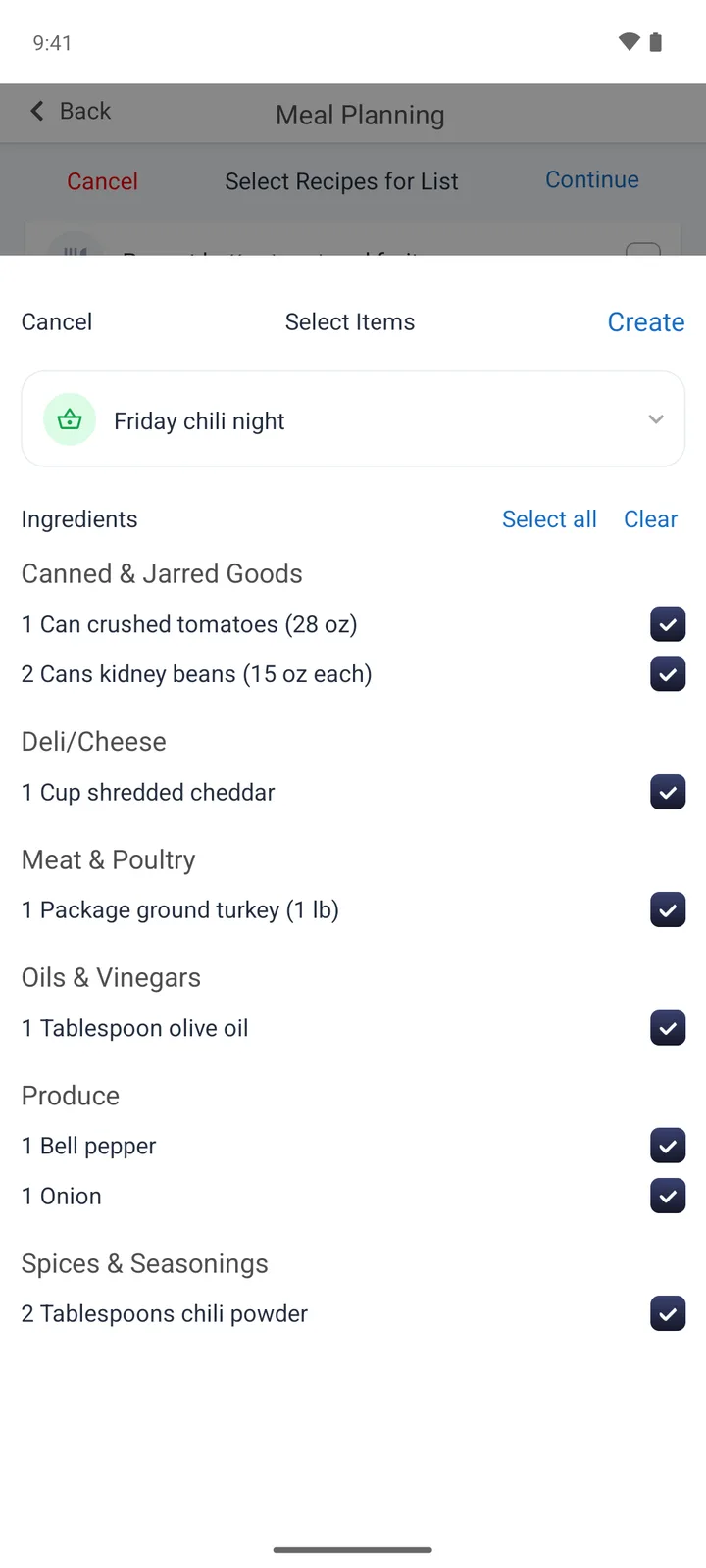
- Tap New Grocery List in Select Items.
- Enter a useful name in Enter List Title, such as Friday chili night.
- Tap Create to make the list.
- Select the ingredients you need, or tap Select all.
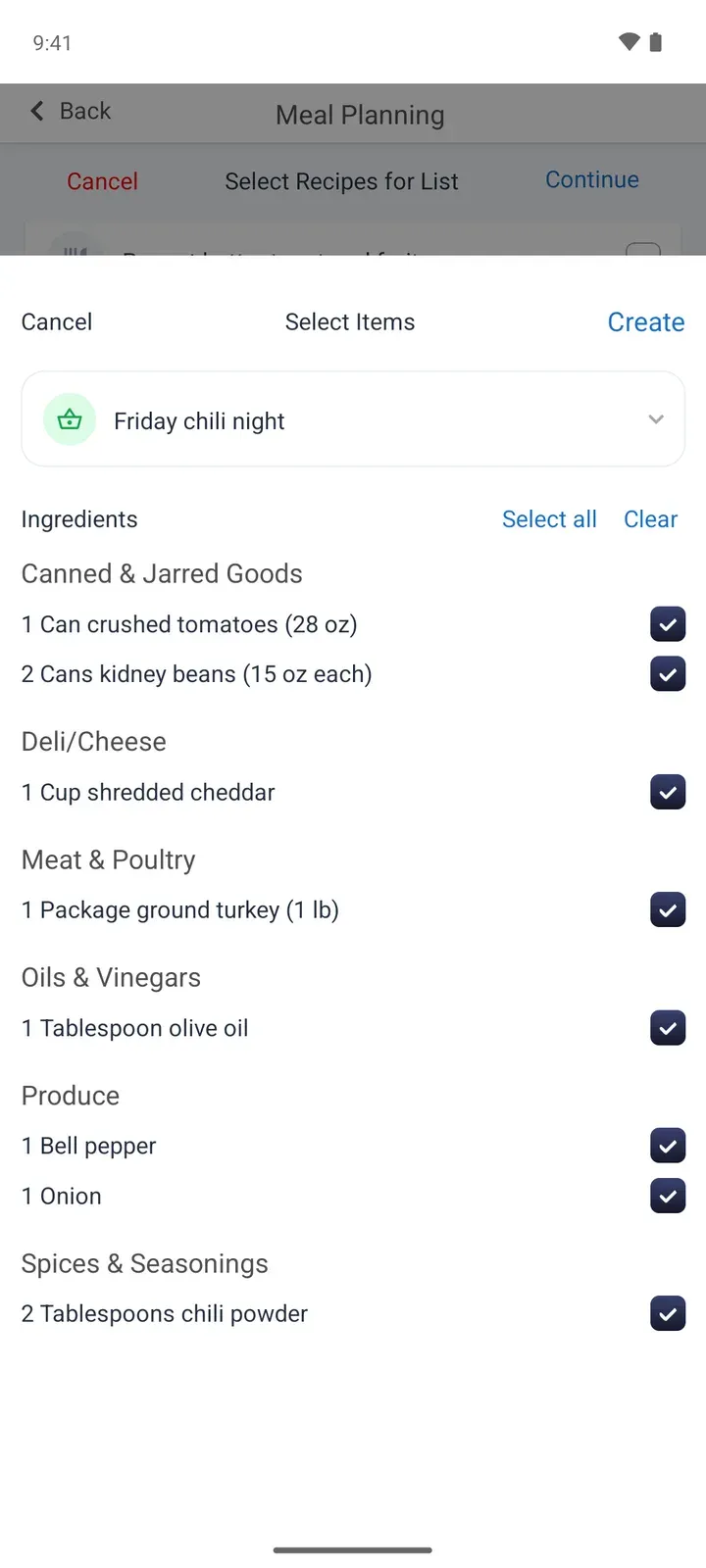
- Tap Create to add the selected ingredients.
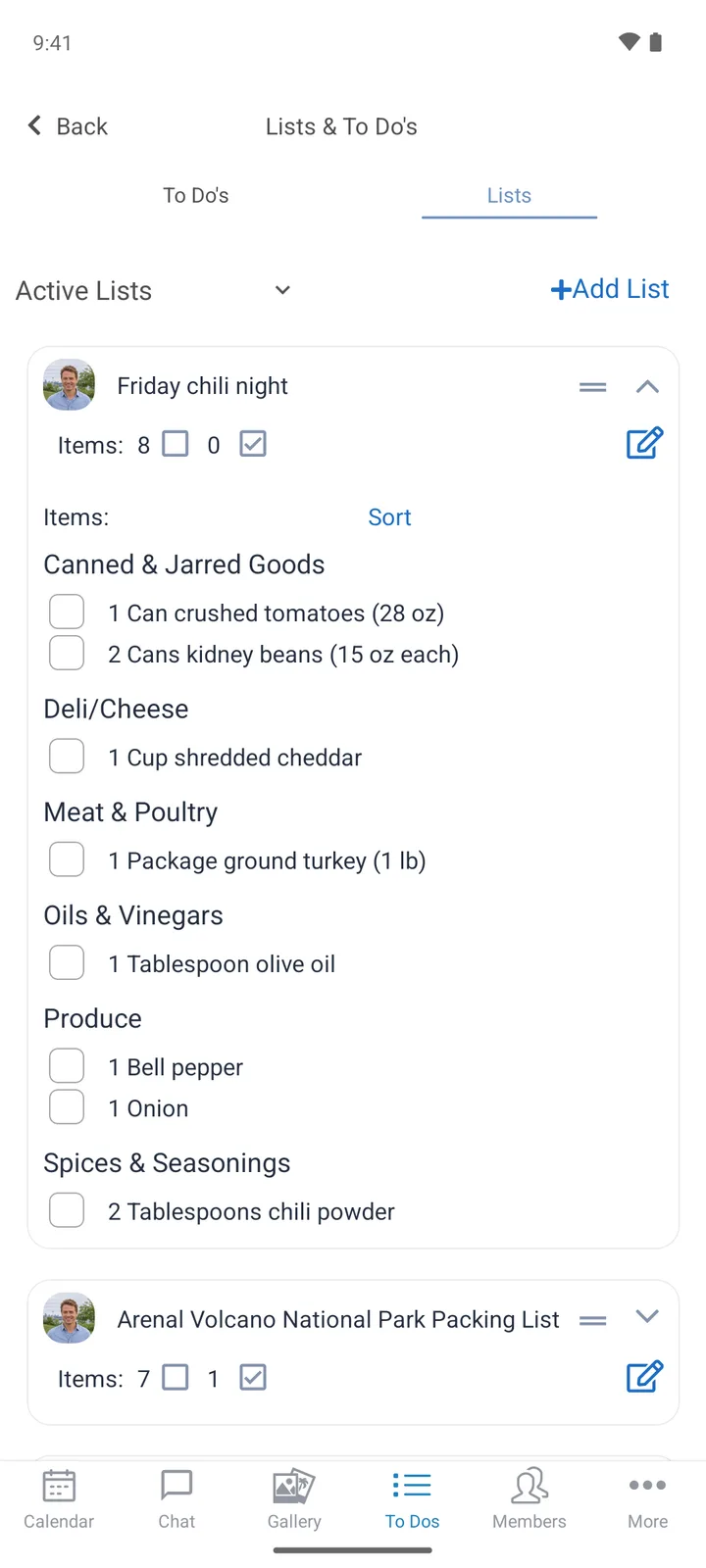
- Tap YES when Grocery List Created asks whether you want to view it.
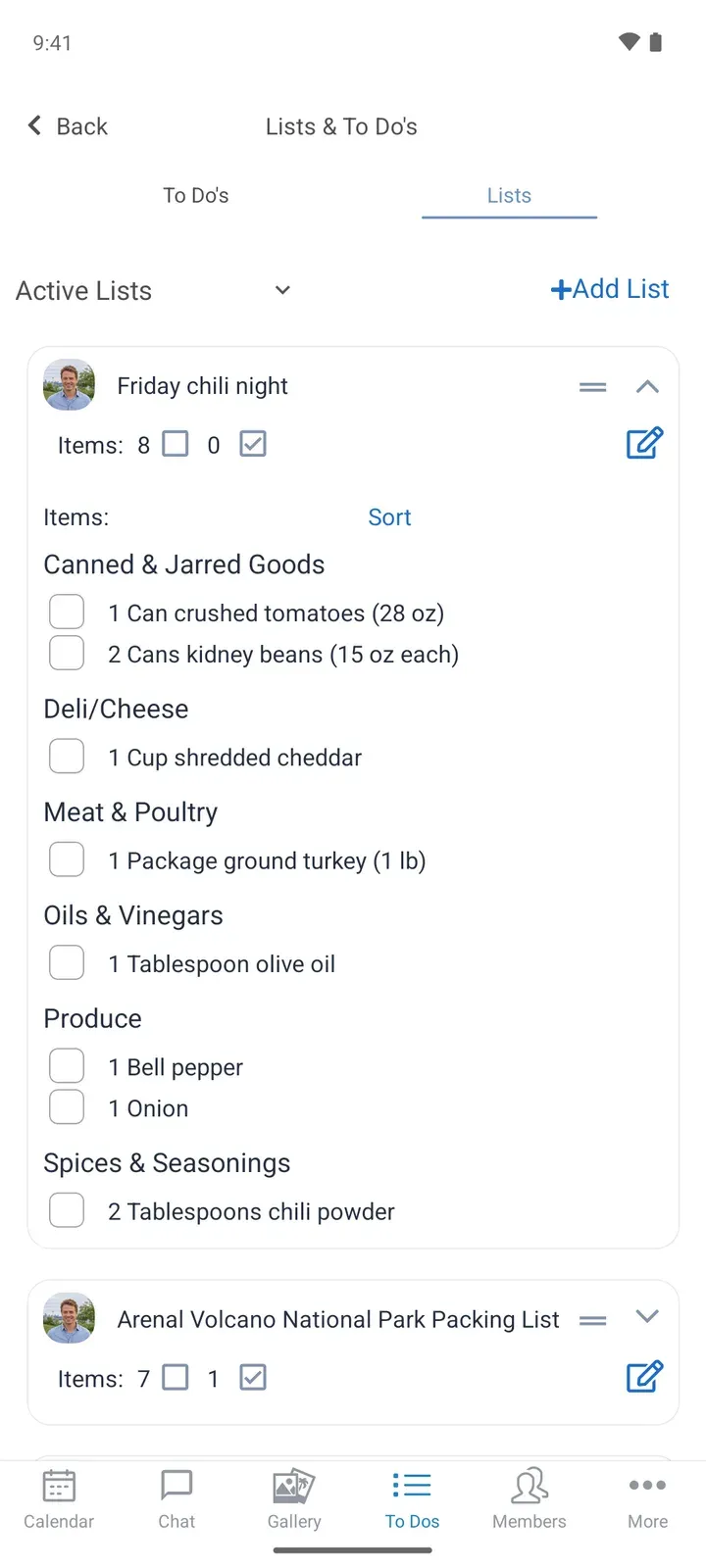
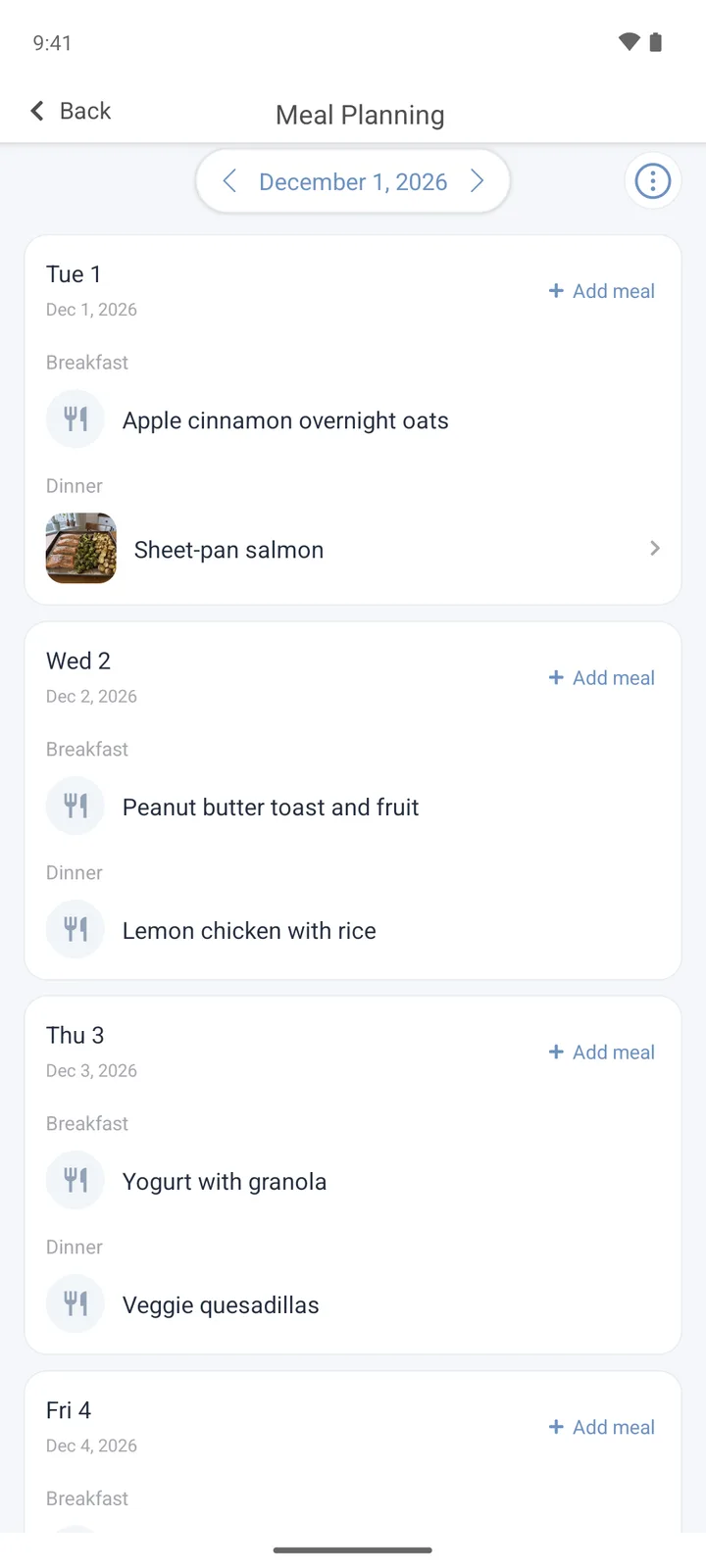
Steps checked on Android; iPhone screens may look slightly different. Checked in Podz 2.20.56 on Nov 16, 2026.
Good to know
The Bennett family has breakfasts and dinners planned for the start of the week. Friday’s chili makes dinner easier to decide, and its recipe supplies eight ingredients for the grocery list. Check your pantry before selecting ingredients so you only add what you need.
Choose the meals and ingredients you need
A day can already have some meal types planned. In this example, Friday has breakfast, so its menu offers Lunch, Dinner, Snack and Other.
Who is doing the shopping? lets you assign the new grocery list to a family member. Turn on Has Due Date? to choose a date, then confirm with OK.
For a meal that does not need a recipe, turn on No recipe? Just add a meal name, type into Type a meal name, and tap the add button beside the field (the plus sign). That works well for leftovers, a simple breakfast or eating out. A name alone does not supply recipe ingredients for the grocery list.
Save the recipes your family uses
Open More, then Recipes. In the recipe menu, choose Add Recipe. Use Summary for the dish photo, title, description, servings, preparation time, cooking time and author. Choose a dish type and cuisine where useful.
Under Ingredients, tap Add Ingredient, select a quantity, tap Done, and enter the ingredient. Repeat for the remaining ingredients. Under Directions, use Add Step for each instruction; Save and New keeps you moving to the next step. Finish the last instruction with Save, then save the recipe itself.
A complete recipe does two jobs: it gives the next person enough detail to cook dinner, and it gives the meal planner the quantities to put on your shopping list.
Still stuck? Get help from Podz, or search all the guides.