
How do I bring the calendars on my phone into Podz?
Open More, then Sync Calendars, and tap Sync with Local Calendars. Choose the phone calendars and pod members to include, check the dates, then tap Synchronize.
Steps
- Open More, then Sync Calendars.
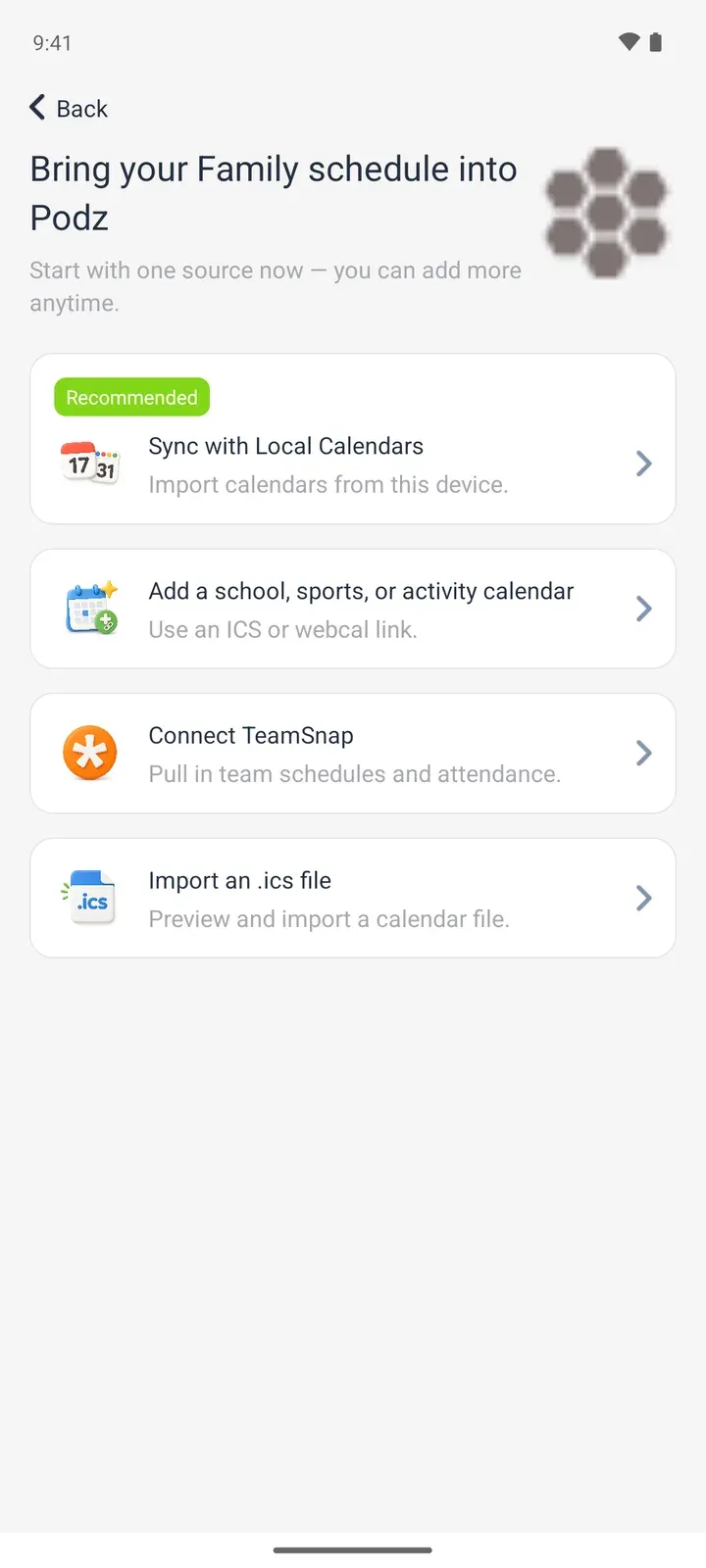
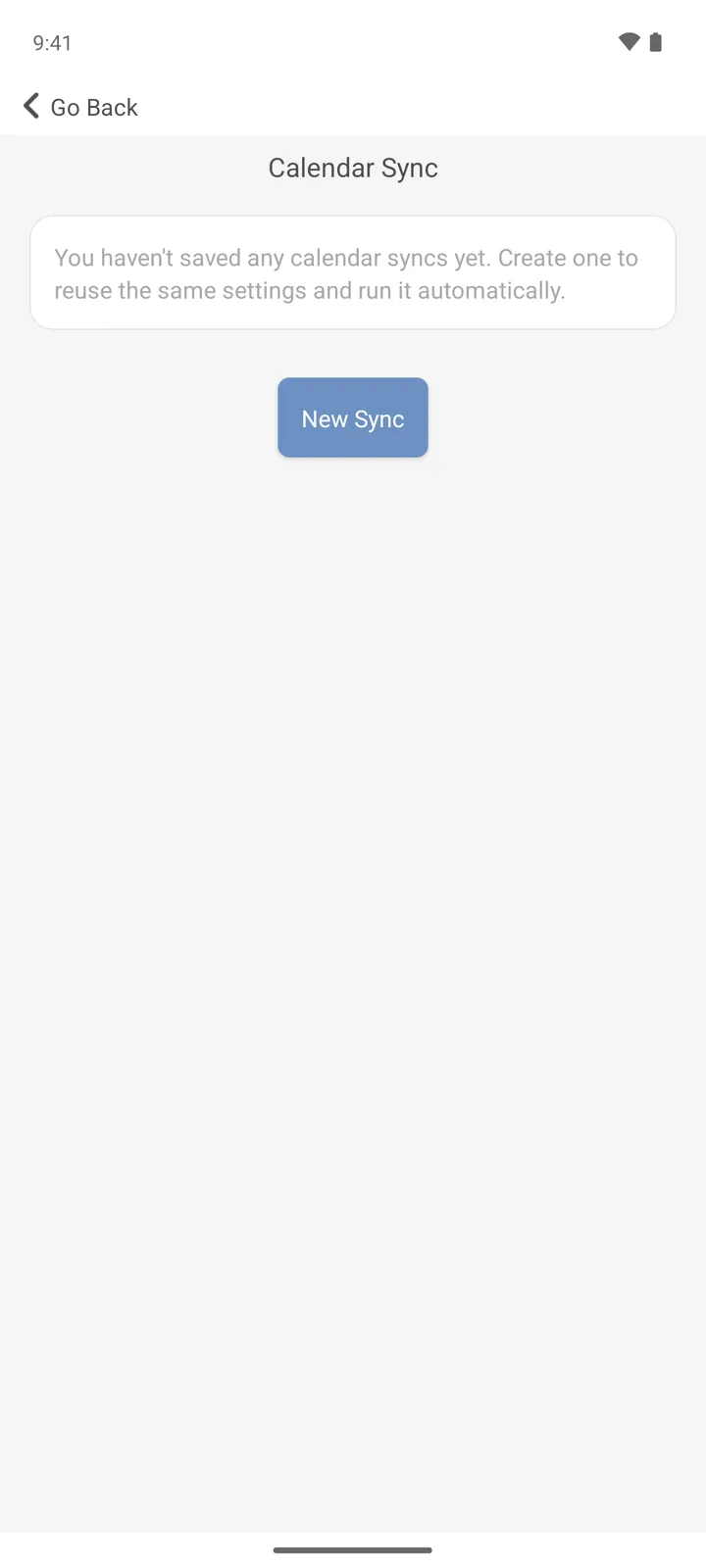
- Tap Sync with Local Calendars to open Calendar Sync. If Android asks to let Podz access your calendar, tap Allow.
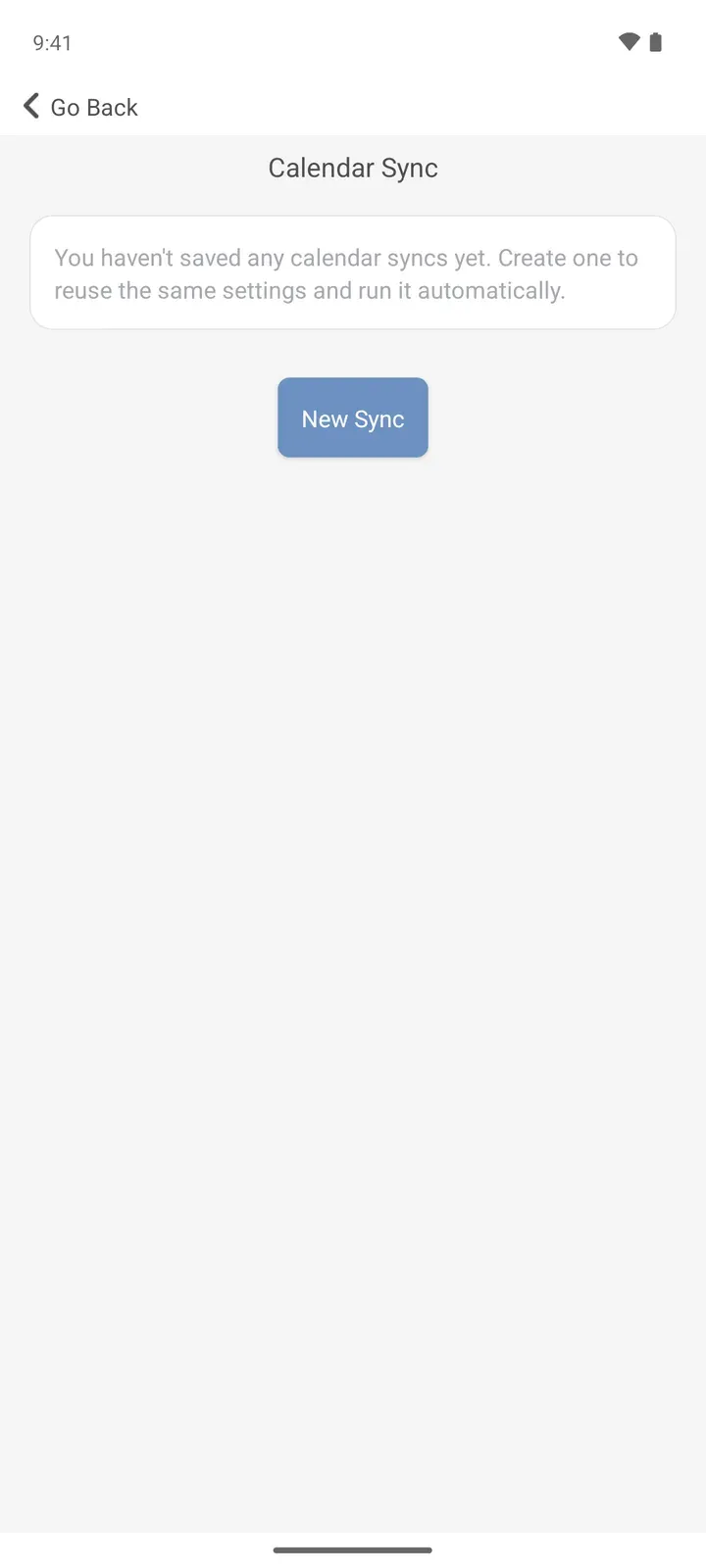
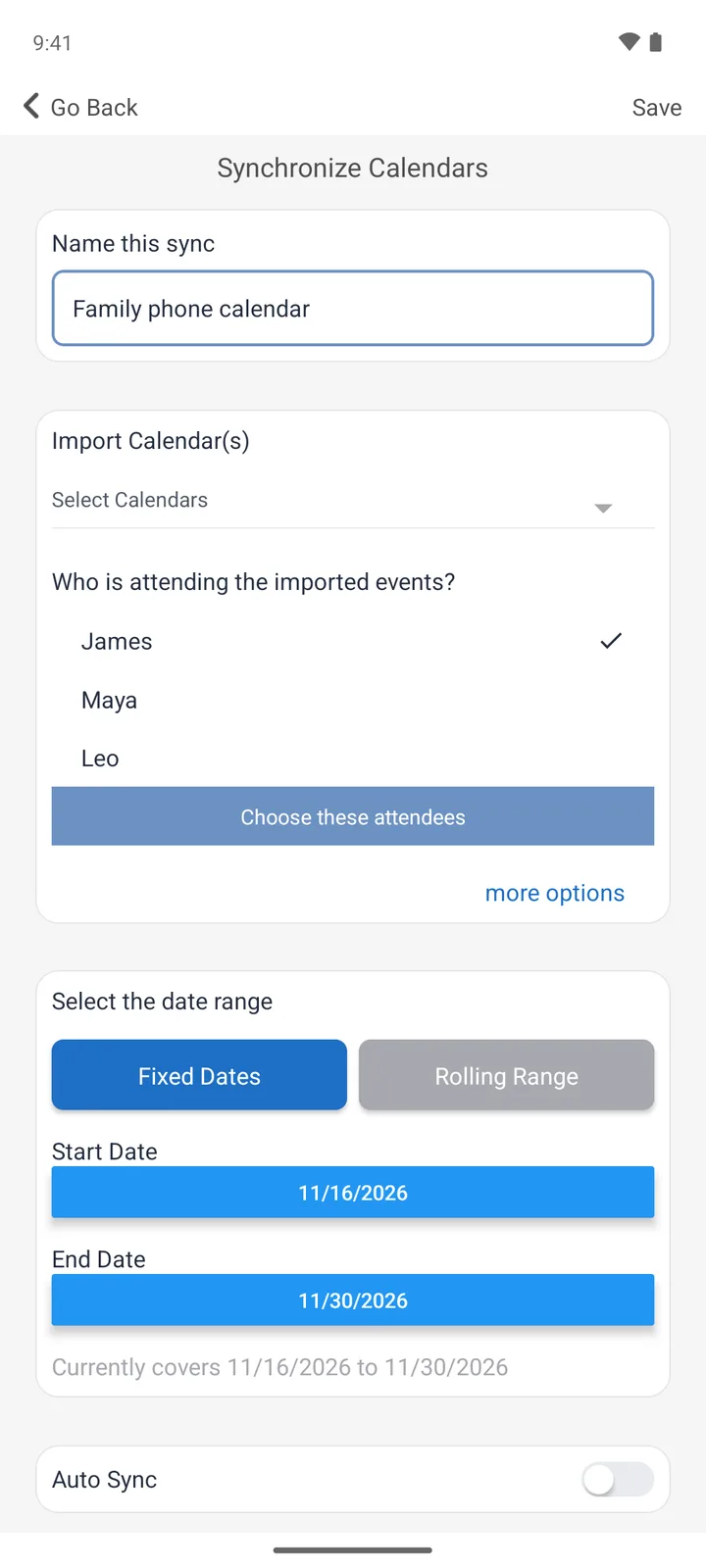
- Tap New Sync to open Synchronize Calendars.
- Enter a name in Name this sync.
- Under Import Calendar(s), open Select Calendars and choose only the calendars you intend to share with this pod. Scroll the calendar selector if needed, then tap Import selected calendars.
- Under Who is attending the imported events?, open Select Attendees and choose the pod members who should attend the imported events. Tap Choose these attendees to confirm your selection.
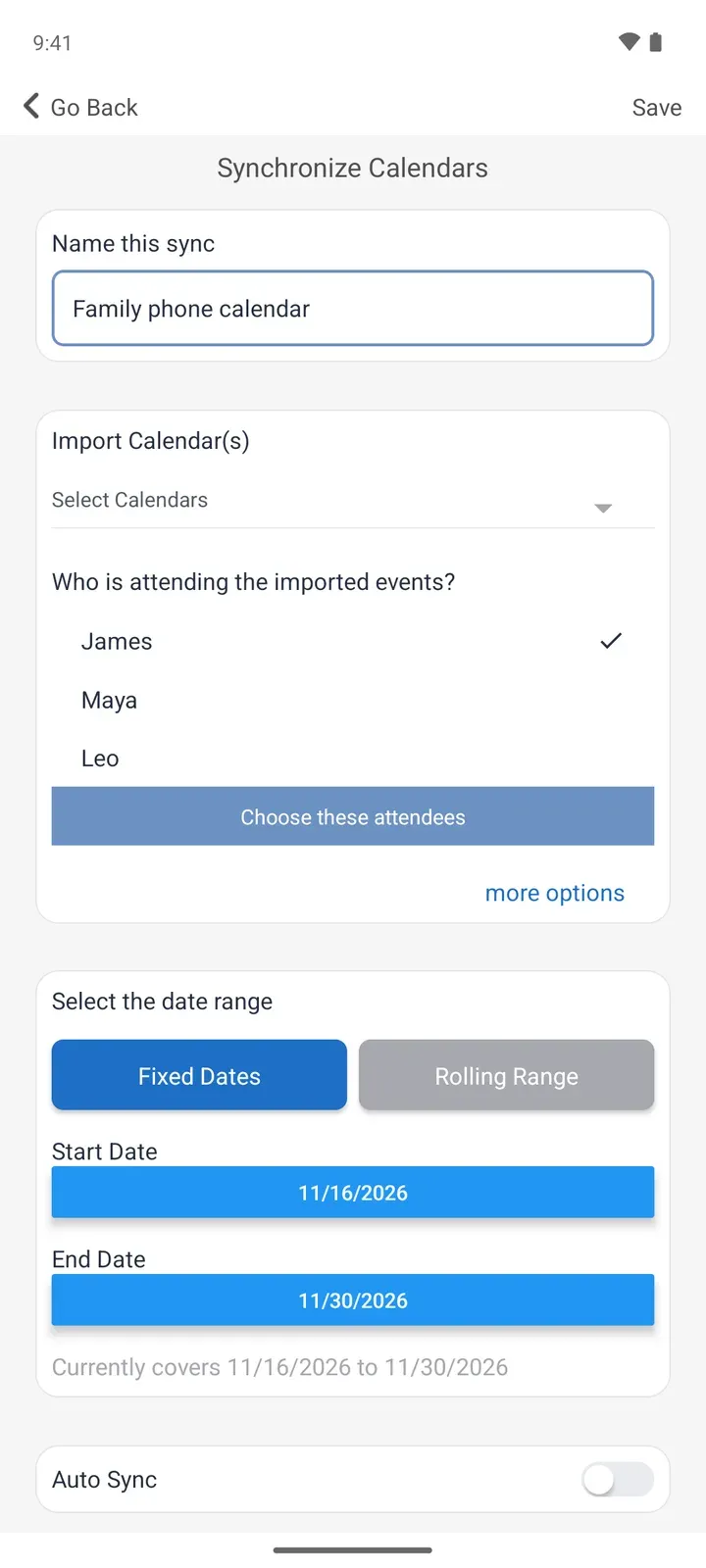
- Check Select the date range. It covers two weeks by default: move the End Date under Fixed Dates, or choose Rolling Range for a period that moves with today.
- When the calendars, members and dates look right, tap Synchronize. Check that Calendar Import Success! reports the imported count, then tap OK.
- Open an imported event on your calendar and check its date, time, location and attendees.
Steps checked on Android; iPhone screens may look slightly different. Checked in Podz 2.20.56 on Nov 16, 2026.
Good to know
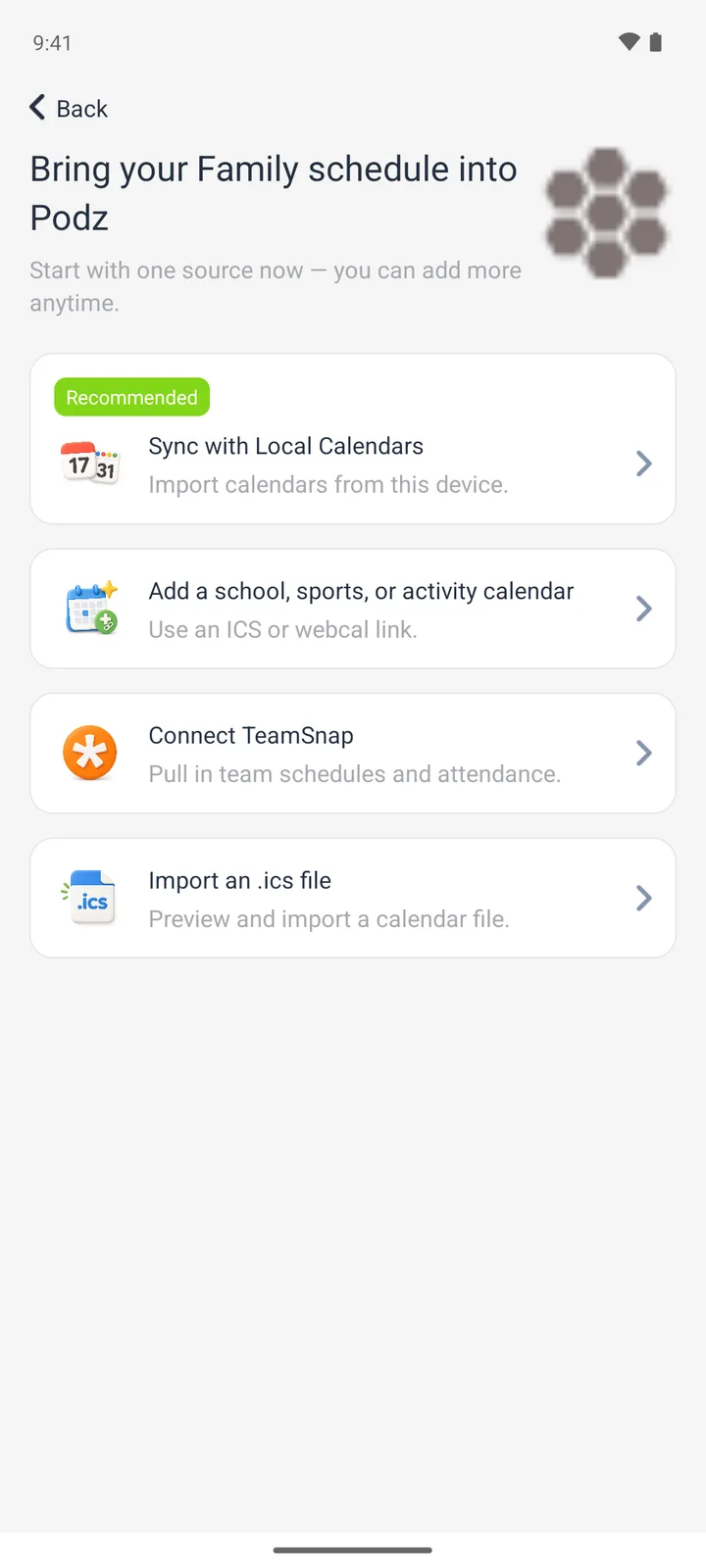
The same screen also has Add a school, sports, or activity calendar (Use an ICS or webcal link.), Import an .ics file, and Connect TeamSnap (Pull in team schedules and attendance.). Start with one source. You can add the others at any time.
To keep these settings without importing, tap Save on Synchronize Calendars instead of Synchronize, then go back. The sync is listed on Calendar Sync; open its name to see its calendars and attendees.
Still stuck? Get help from Podz, or search all the guides.