Podz 알림이 오지 않는 이유는 무엇인가요?
App Settings를 열고 Turn Notifications On이 보이면 눌러서 알림을 허용하세요. 그런 다음 팟이 음소거되어 있는지, 일정에 알림이 설정되어 있는지 확인하세요.
단계
- 팟에서 앱 메뉴(Pod 화면 오른쪽 위의 톱니바퀴 아이콘)를 여세요.
- App Settings를 누르세요.
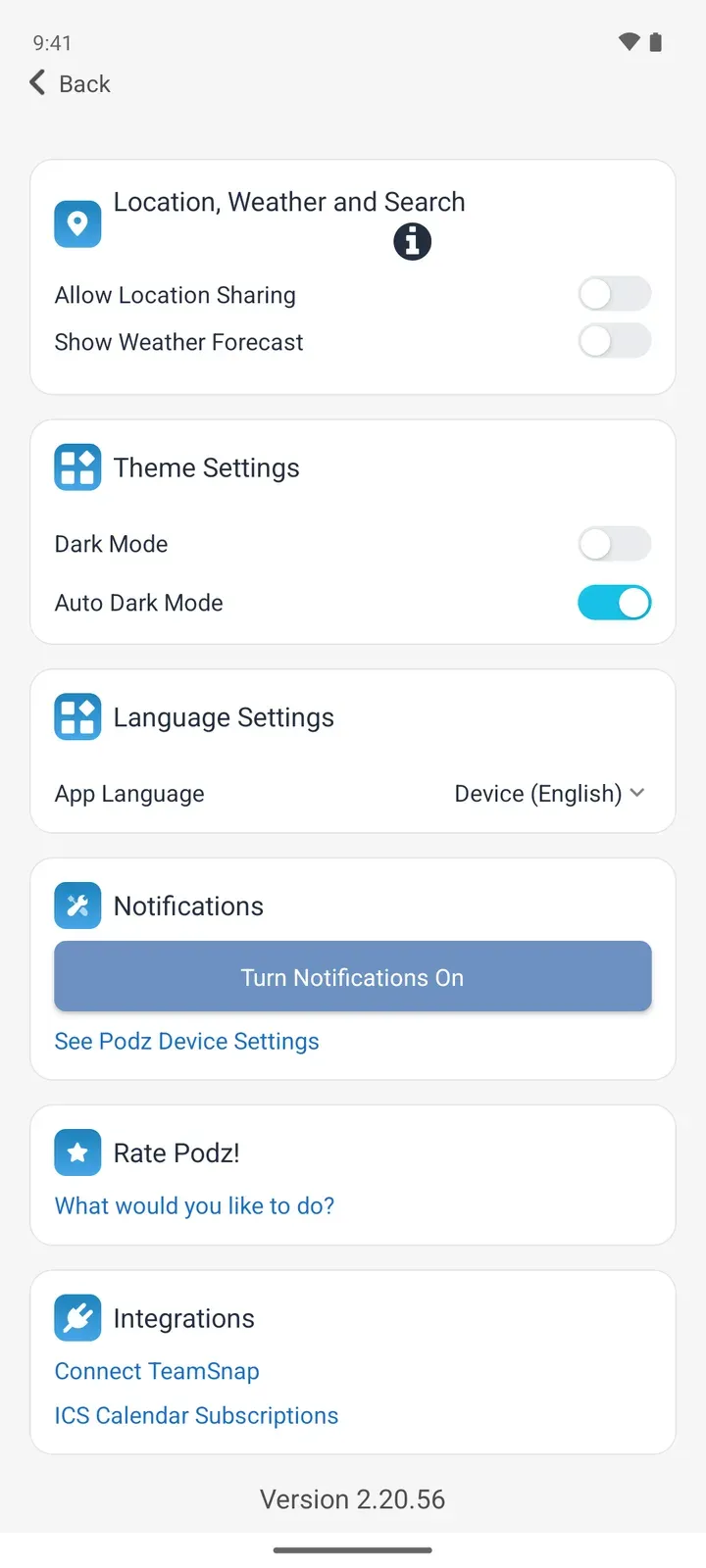
- Notifications 아래의 Turn Notifications On을 누르세요.
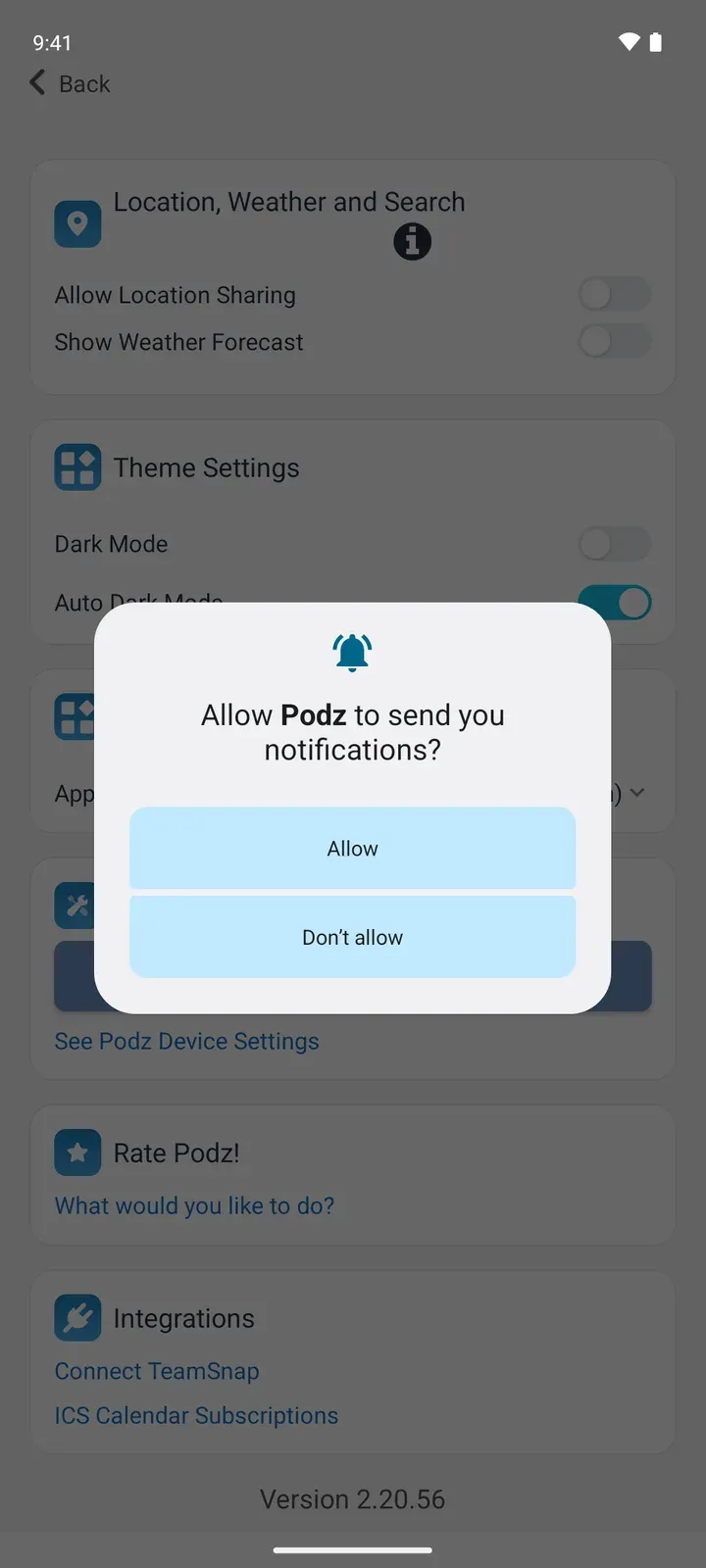
- Android에서 묻는 창이 나오면 Allow를 누르세요. 이제 Notifications에 Notifications are on이 표시됩니다.
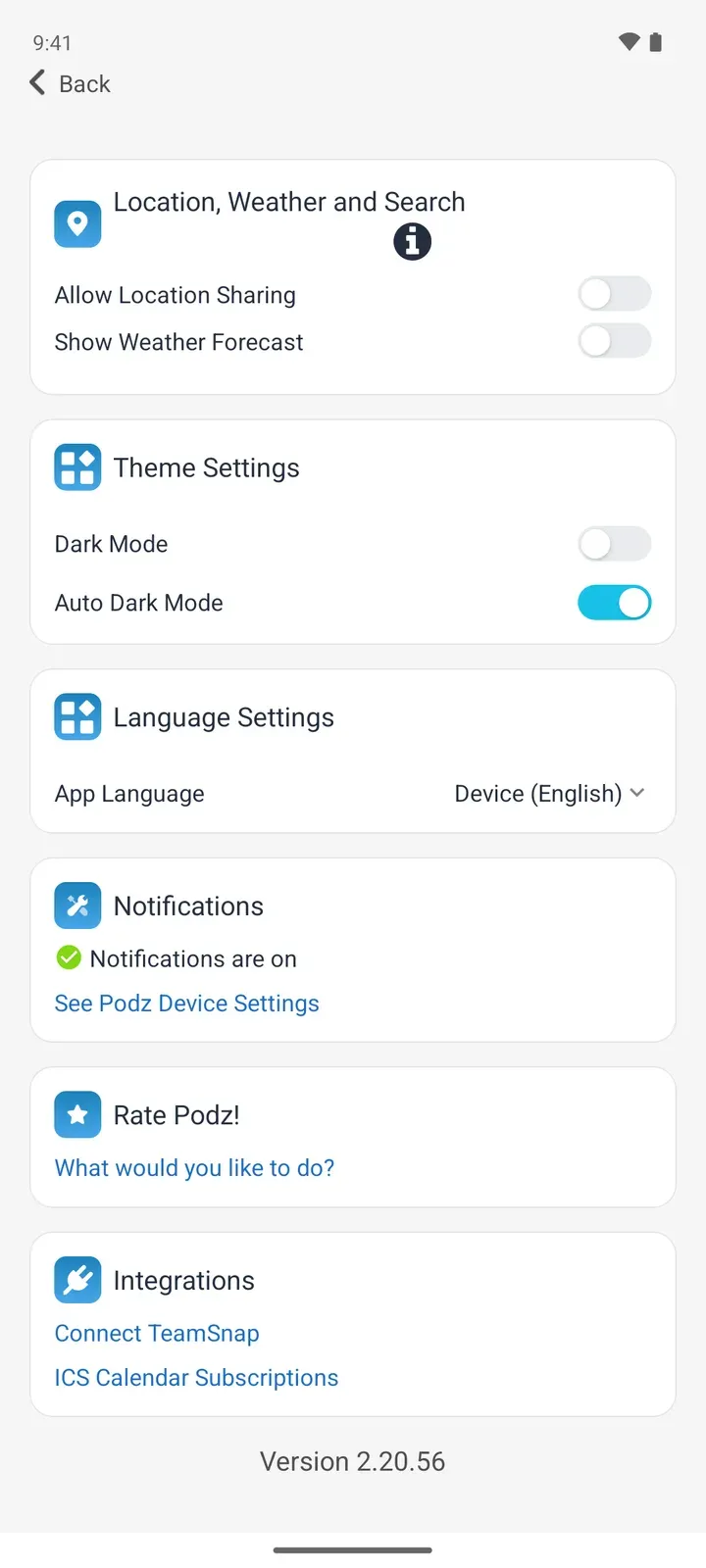
- 그래도 알림이 오지 않으면 See Podz Device Settings를 누른 다음 Notifications를 누르고, All Podz notifications가 켜져 있는지 확인하세요.
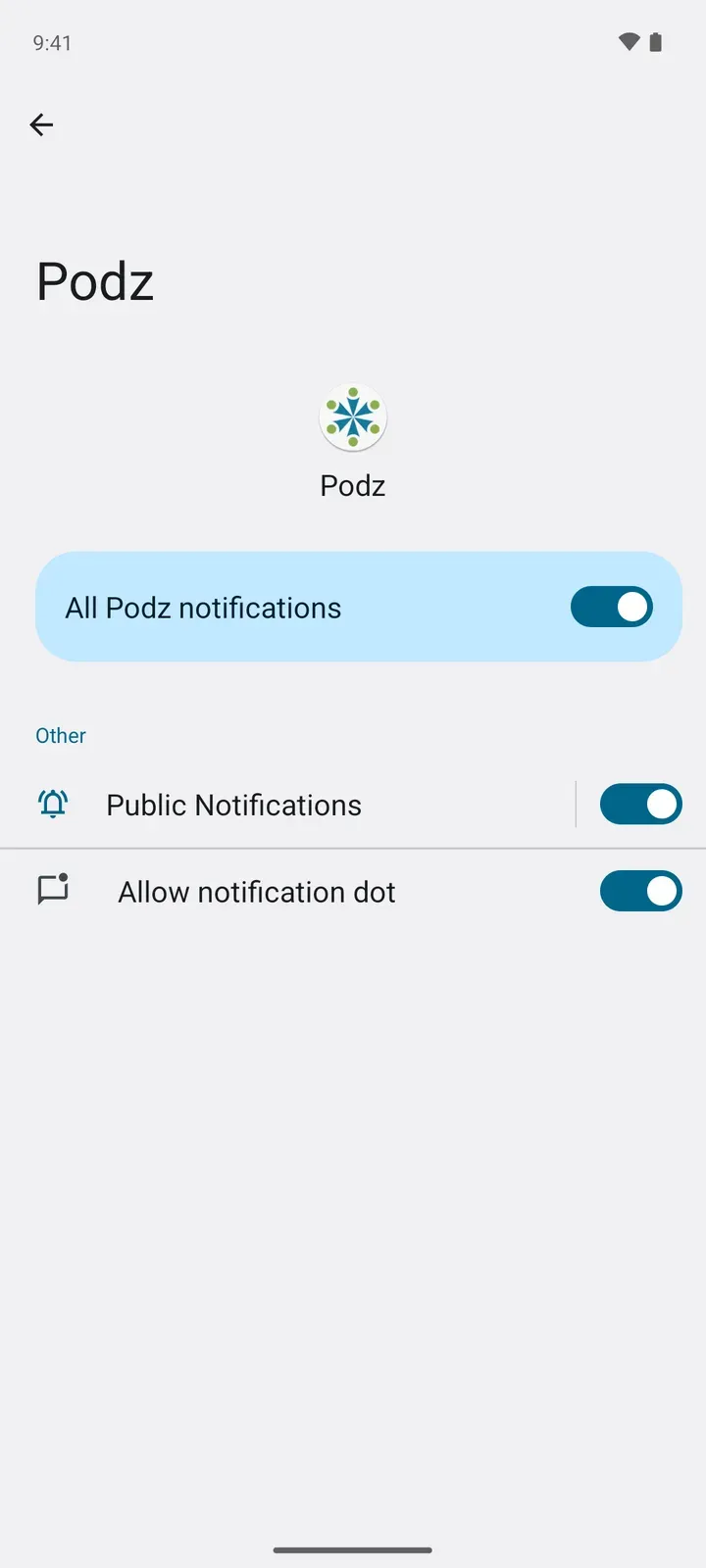
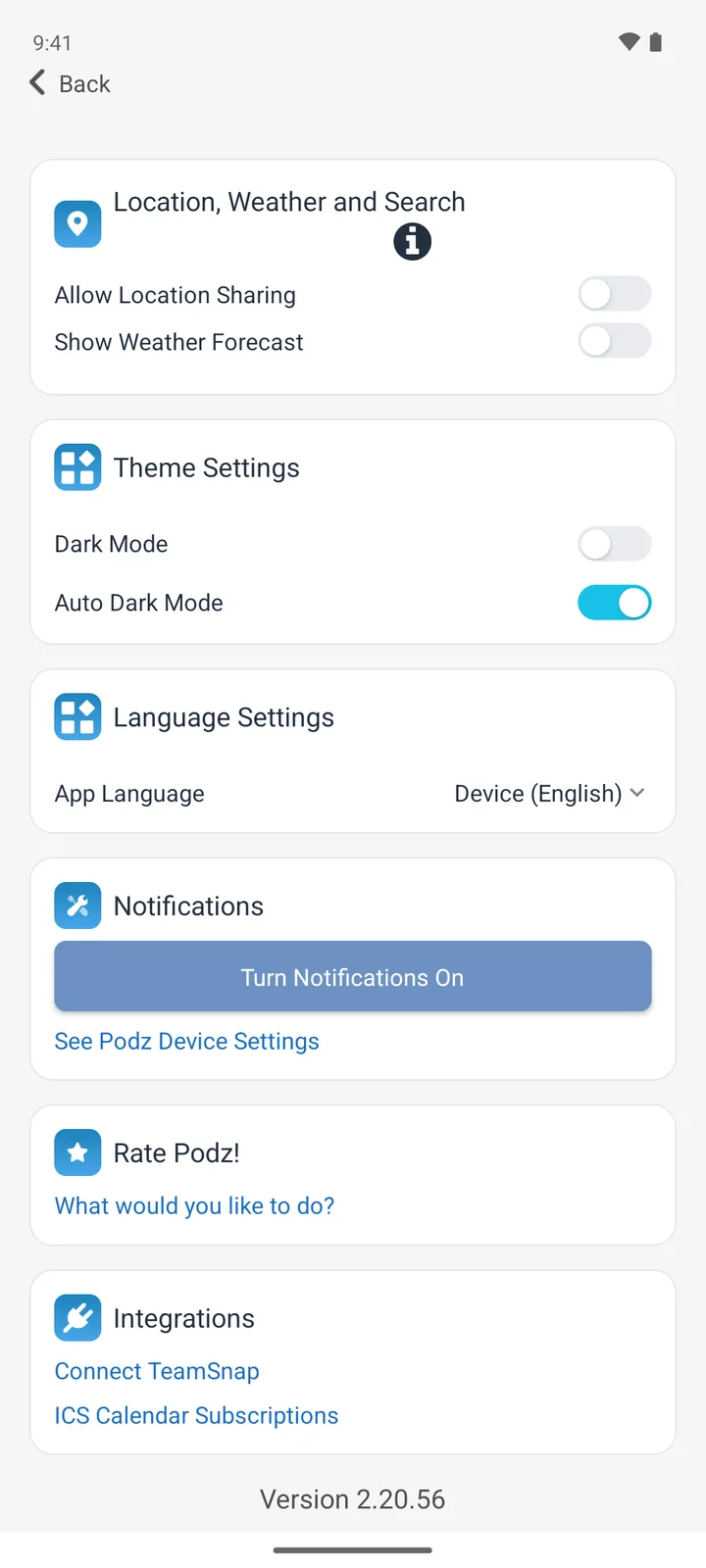
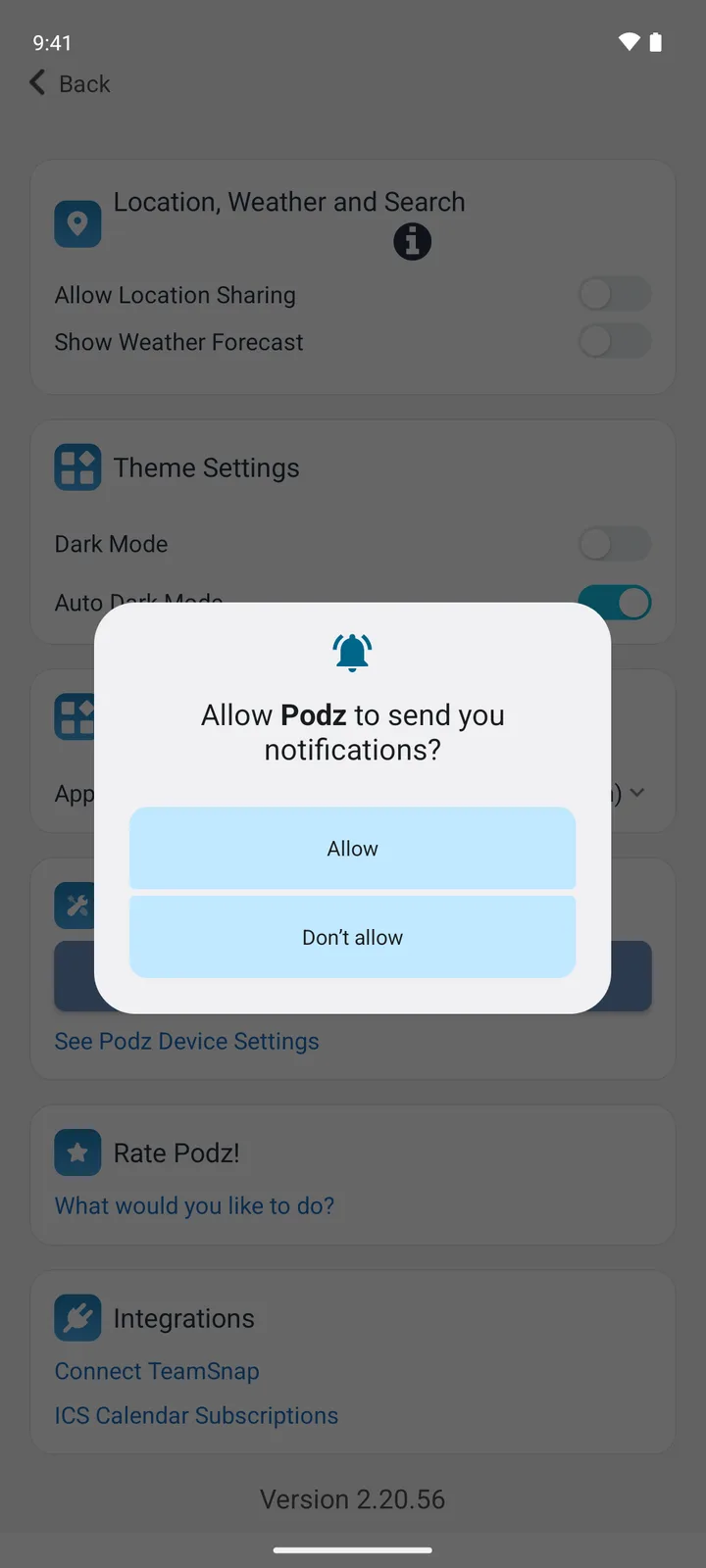
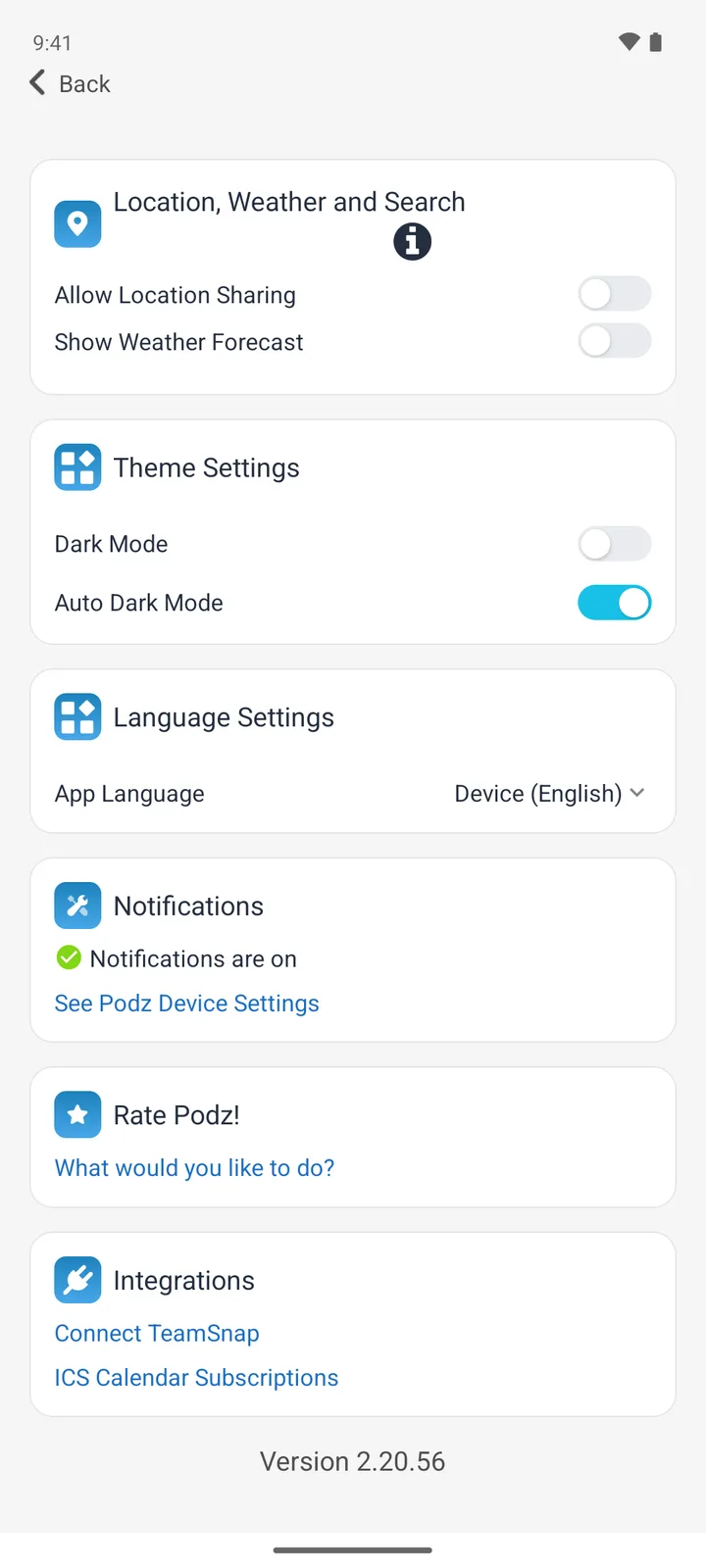
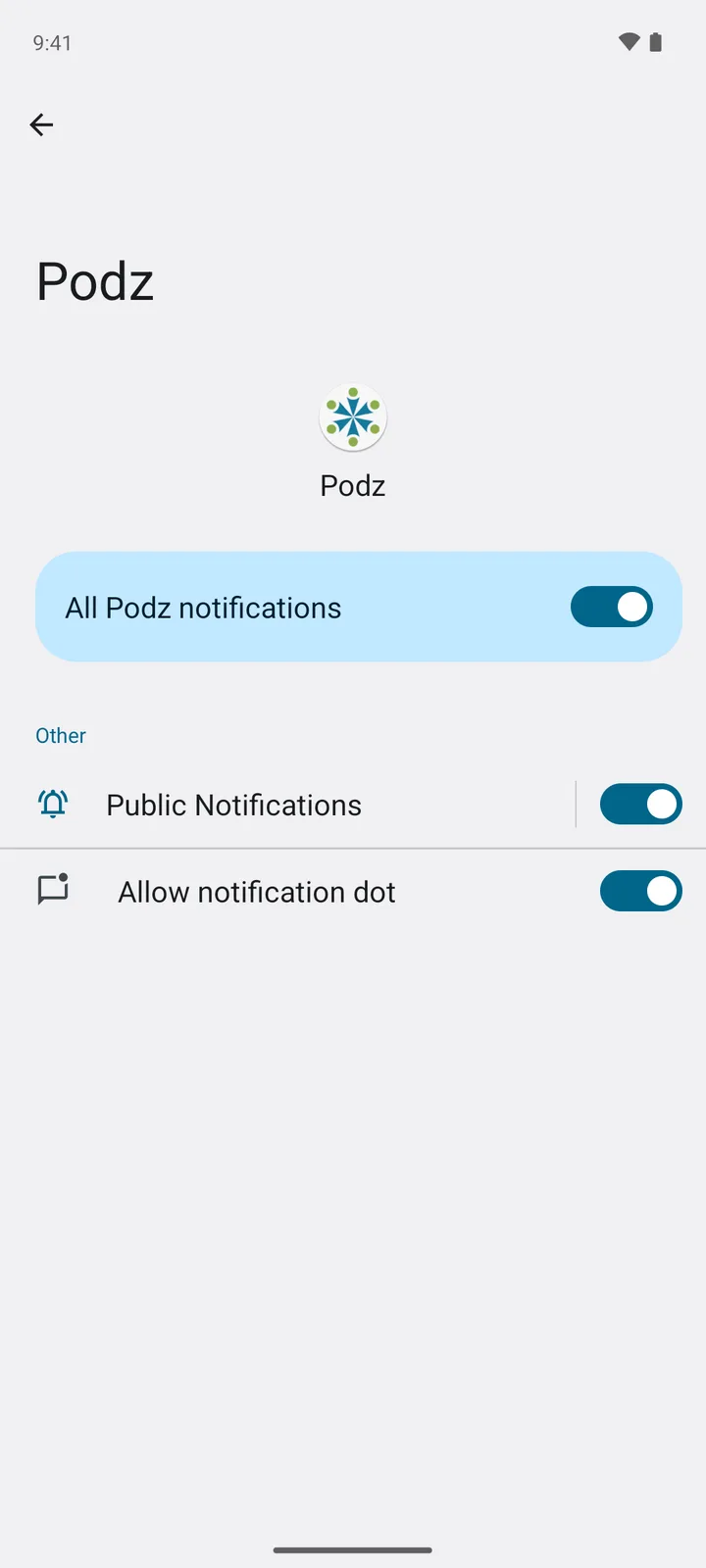
Android에서 확인한 단계입니다. iPhone 화면은 조금 다를 수 있습니다. 2026년 11월 16일에 Podz 2.20.56에서 확인했습니다.
알아 두면 좋은 점
휴대전화 알림이 켜져 있다면 Pod Profile의 Silence This Pod와 일정 알림을 확인하세요. 일정 생성 화면은 First Alert, 저장된 일정의 편집 화면은 Alert를 사용합니다. 관련 가이드에서 자세히 안내합니다. Android 표시 문구는 기기와 휴대전화 언어에 따라 다를 수 있습니다.