
Why are my events different colors, and how do I change mine?
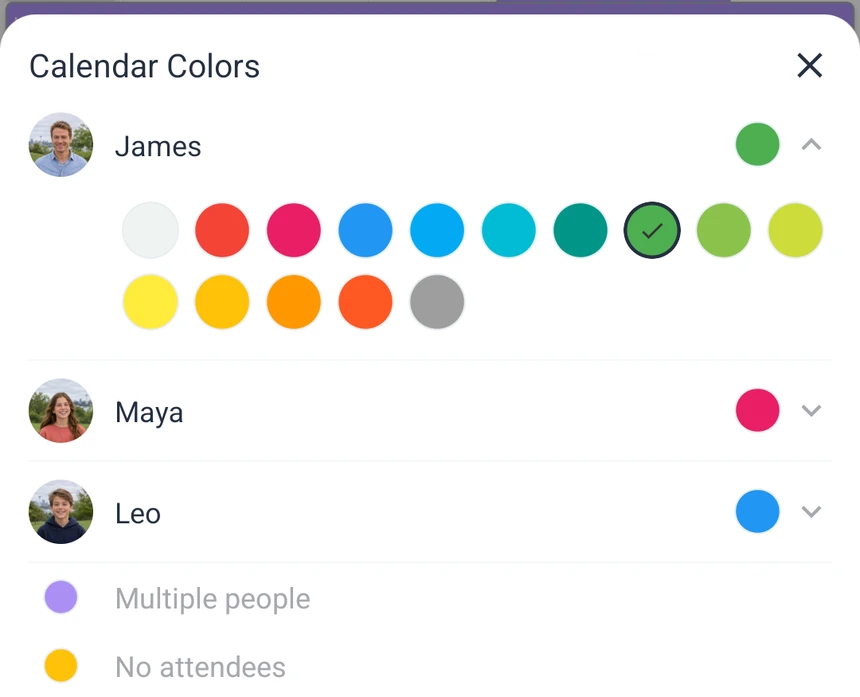
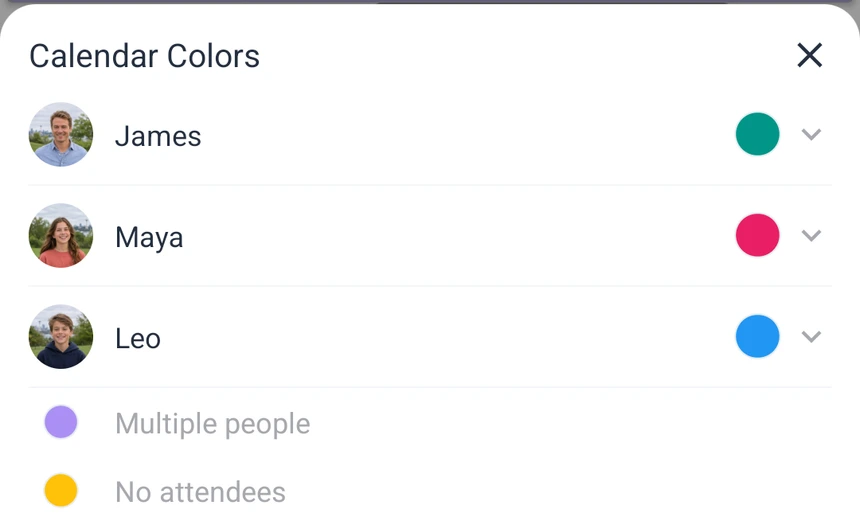
The calendar legend shows the color for each pod member, for events with several people and for events with no attendees. In Day, Week or Month view on Android, tap Legend, open a member’s row and choose a color.
Steps
- Open Calendar in your pod. Use the view button to the left of the date to choose Day, Week or Month.
- Tap Legend at the bottom right of the calendar.

- In Calendar Colors, find the member’s name. The dot beside it shows their current color.
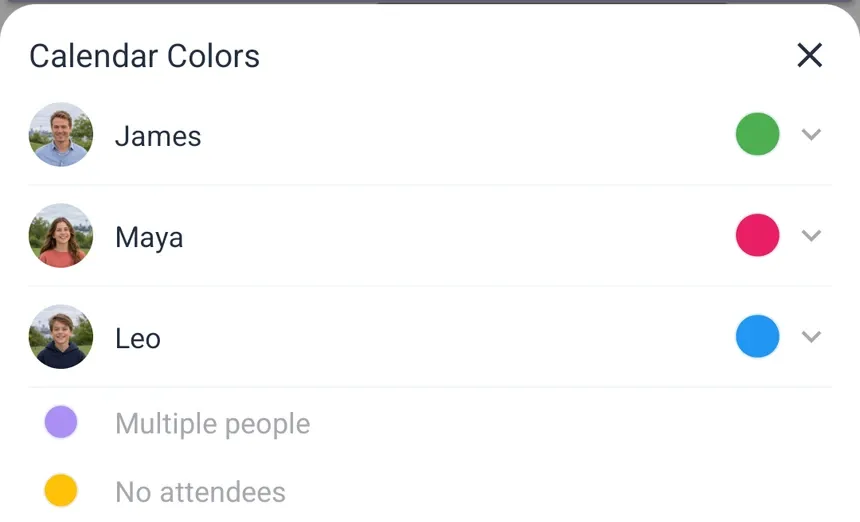
- Tap the member’s row to open the color choices. Tap a swatch to apply it.
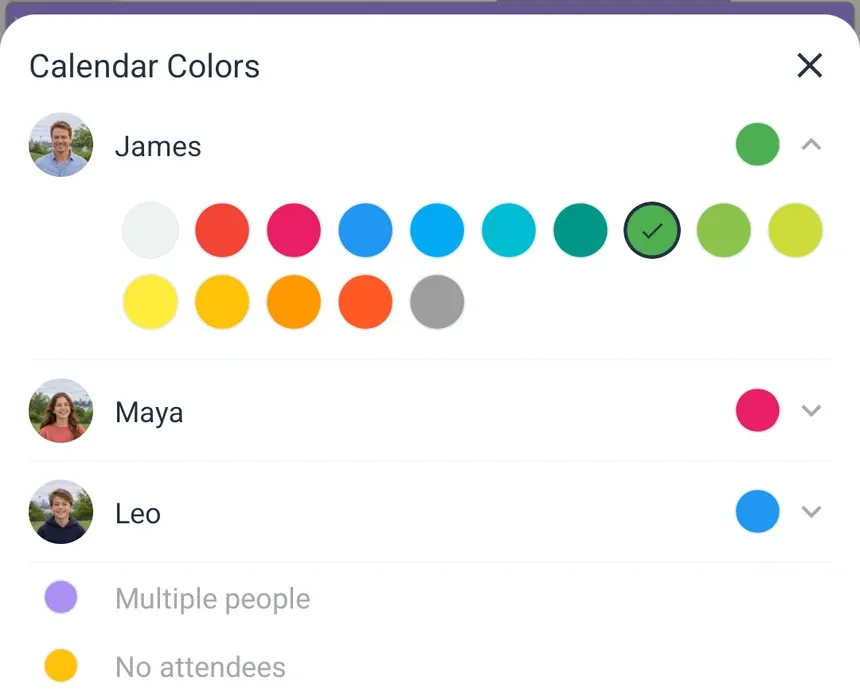
- Close Calendar Colors to return to the calendar. Reopen Legend to see the saved color.
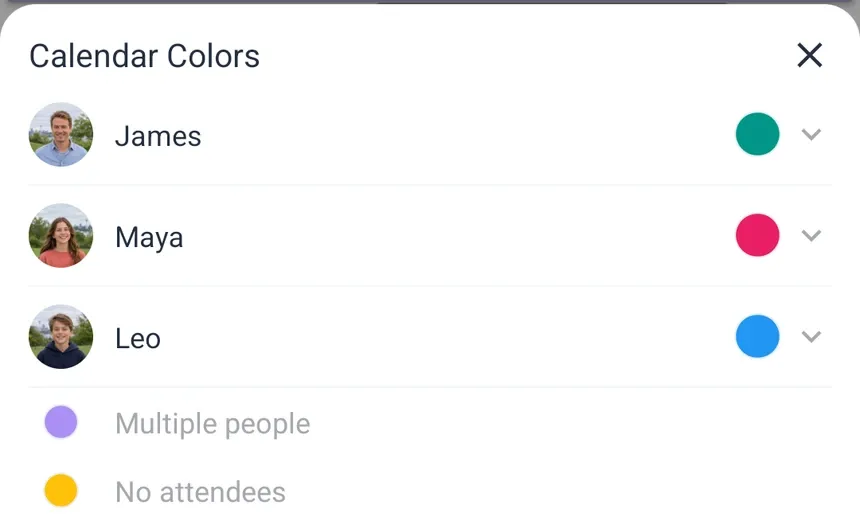

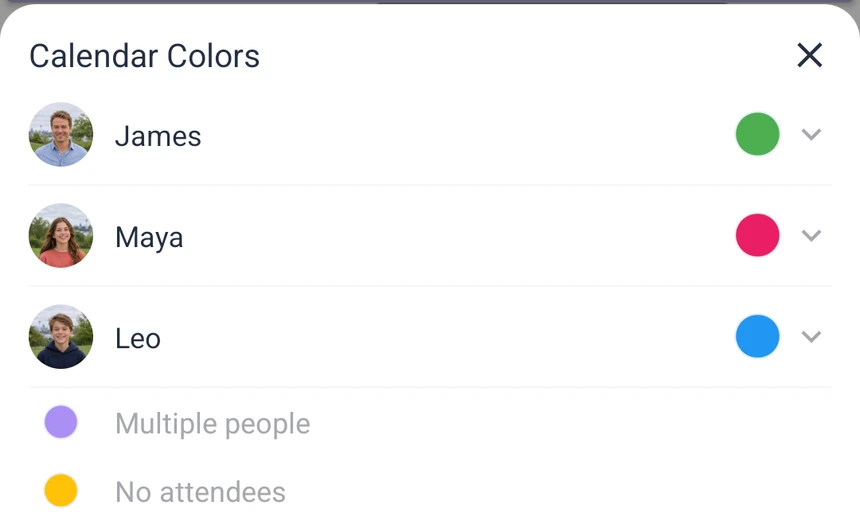
Steps checked on Android; iPhone screens may look slightly different. Checked in Podz 2.20.59 on Nov 24, 2026.
Good to know
In this example, the purple Multiple people color marks shared plans such as winter break. No attendees has its own color. The legend shows which color each uses in your pod.
On earlier Android releases, open the app menu (the gear icon at the top right of a pod screen), choose Pod Profile, select your calendar color and tap Save.
Still stuck? Get help from Podz, or search all the guides.